Replay a day: see where every van was, minute by minute
7 steps3 min read
A replay answers “what happened at 11:54?” without calling the driver. Use it for a customer who says nobody came, a stop that took too long, or to see how a new driver’s day really went. Nothing can be changed from a replay.
In this guide
Step 1: Open the replay
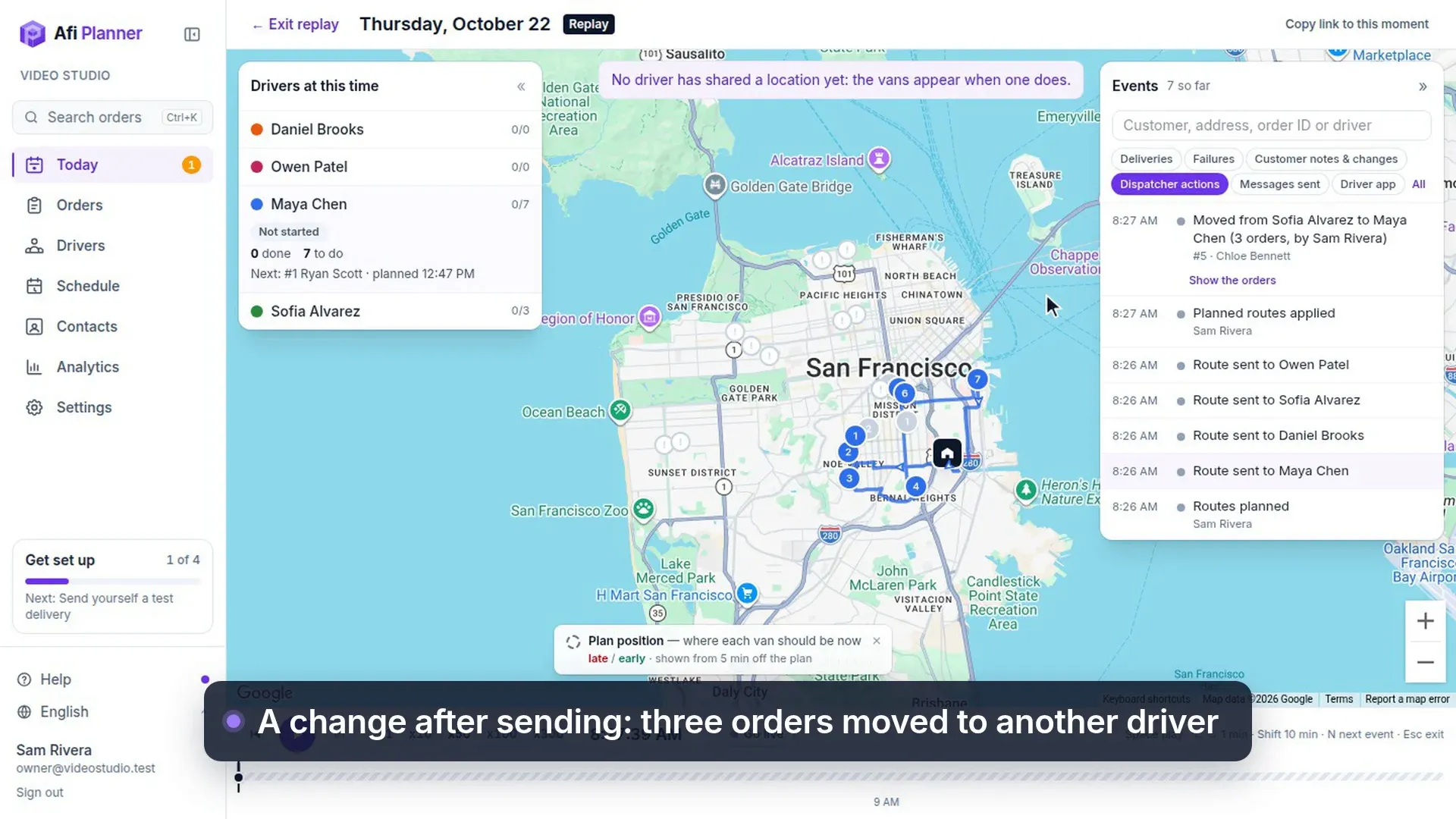
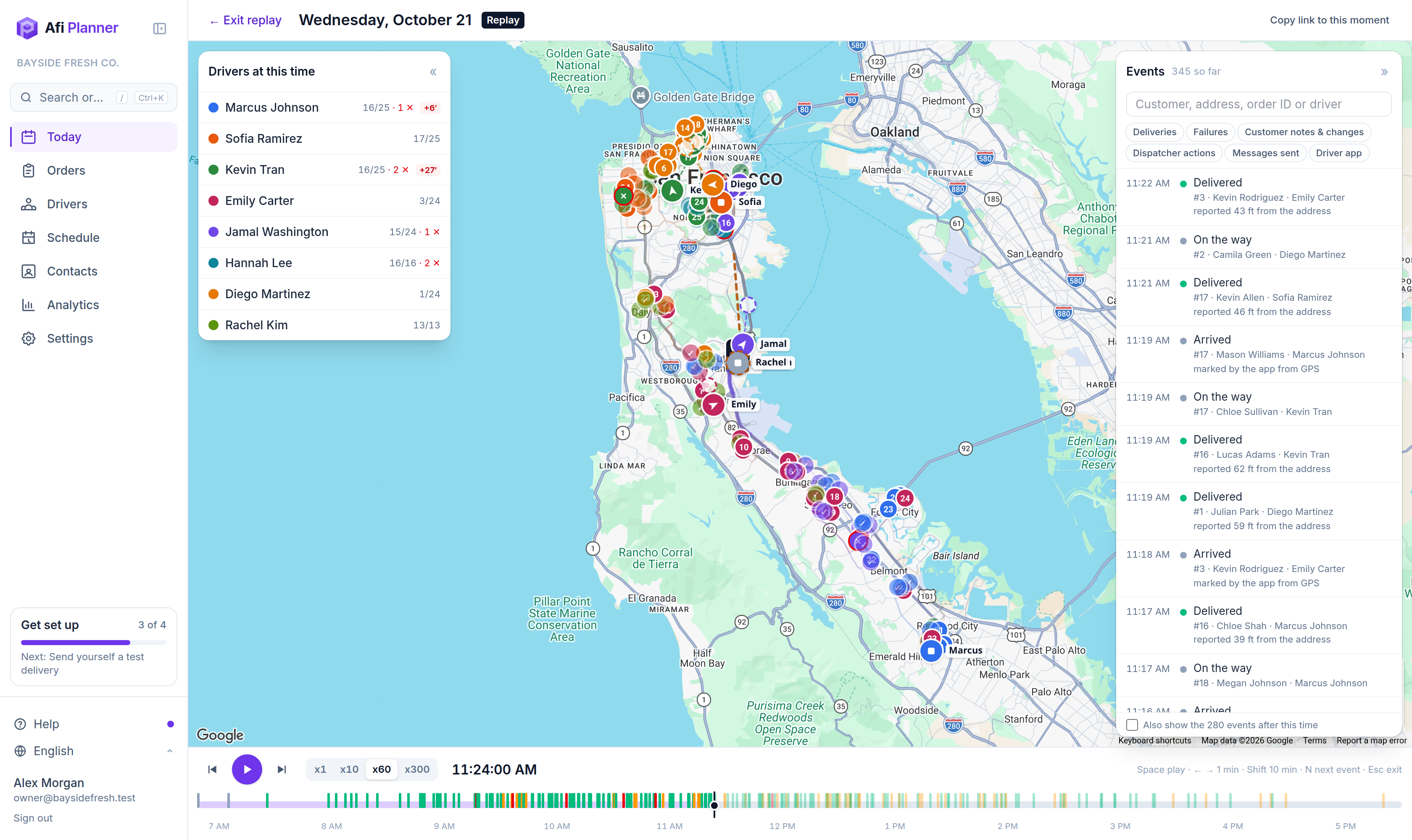
On the day page, click ▶ Replay. It is there for any day whose routes were sent, today or earlier. The map fills the screen with each driver at that moment on the left, the events on the right and the time bar below. Exit replay, or Esc, takes you back to the day.
Step 2: Play it at your speed
Press Play (or Space) and pick x1, x10, x60 or x300, or drag along the time bar to any minute. Ticks on the bar mark the events: green for deliveries, red for failures, amber for customer changes, grey for dispatcher actions.
Tip: ← and → move one minute, Shift+← and Shift+→ ten minutes.
Step 3: Read the map
Each van moves along the GPS points its phone sent, with the last 15 minutes as a fading trail. A hollow van with a thin line is where the routes you sent put that driver at that minute: the longer the line, the further from the plan. After Send updates, the replay switches to the new routes at the minute they were sent, and an order moved to another driver says who moved it. Stops turn delivered or failed at the minute they were reported, and a gap in the GPS is drawn dashed with how long the phone had no signal. Click a van to bring its route forward.
Step 4: Jump to what matters
Next event (N) stops right on the next event and pauses; Shift+N goes back. Pick Failures, Customer notes & changes or another filter in the events list and Next follows it. Search the events by customer, address, order ID or driver, and click one to go to that minute with the map on its stop.
Step 5: Read a driver at that moment
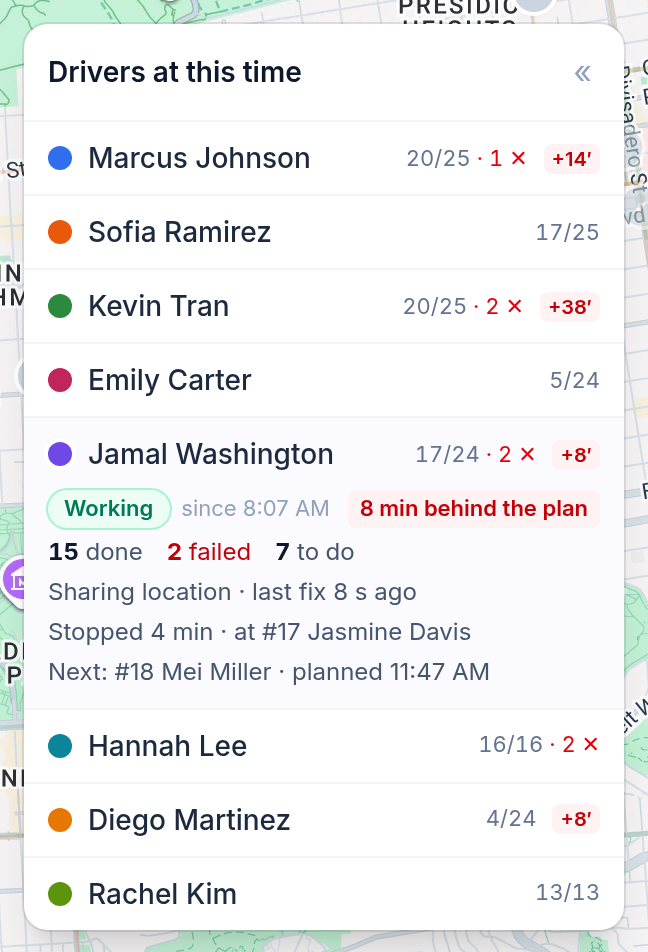
Click a driver on the left, or their van: the card says whether they were working, whether the phone shared its location and how fresh it was, “Stopped 4 min · at #17” or moving and how fast, how far behind the plan, stops done, failed and to do, and the next stop with its planned time.
Step 6: Answer “the driver never came”
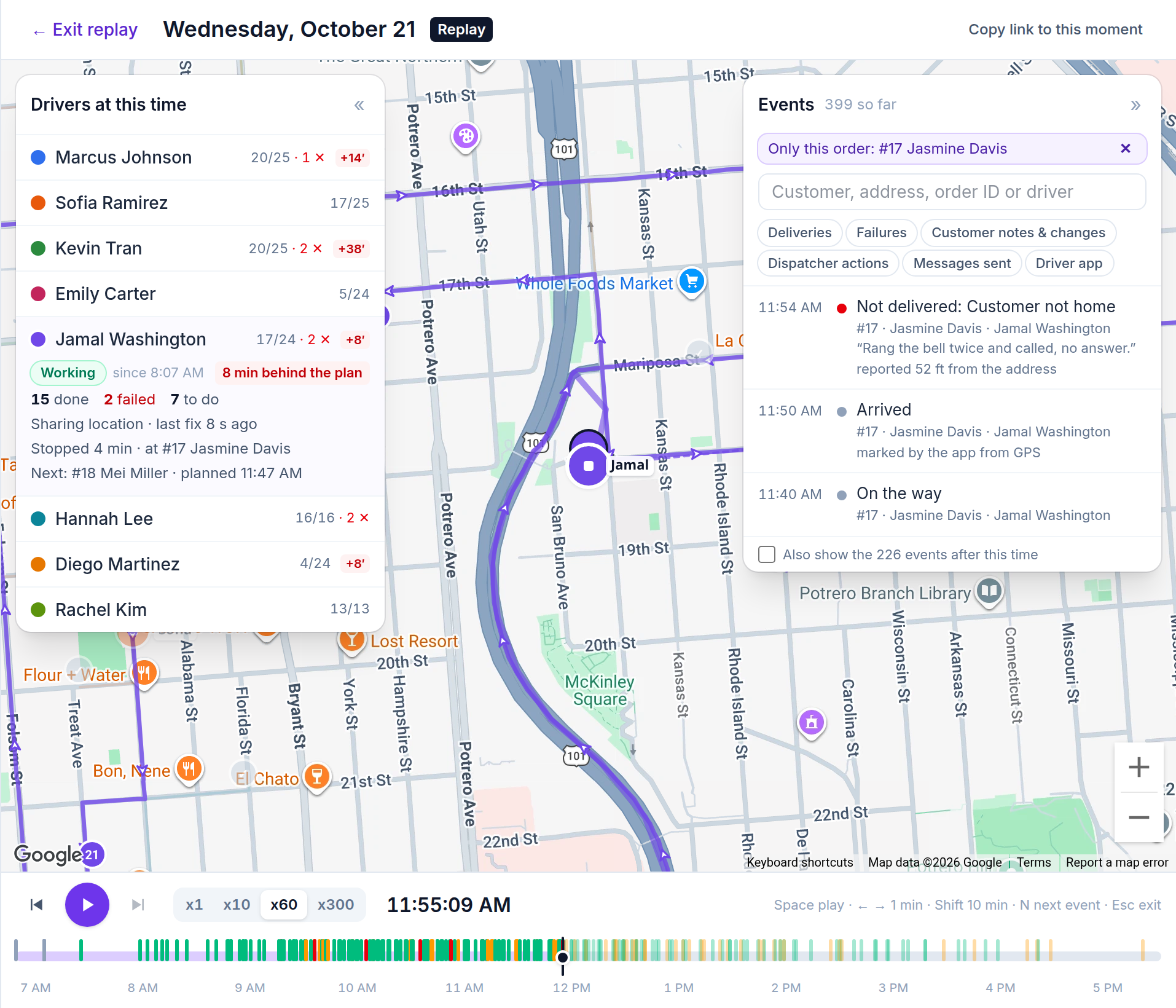
Open the order’s story (from Orders or the search) and click Replay the day at this order. The replay starts just before the first report on that order, with its driver’s route in front and the events list showing only that order. Press N to step through it: on the way, arrived, then the delivery, or the failure with the driver’s reason, note and how far from the address it was reported. Copy link to this moment sends a teammate the same minute.
Tip: Customer service opens replays from the order story too. A report the driver took back stays in the list, struck through.
Step 7: Follow today live
Opened on today, the replay starts Live and follows the day as it happens. Live runs 30 seconds behind so the vans glide between real GPS points; click Real time to see each new position the moment it arrives. After looking back, Go live (L) brings you to now.
Tip: Every GPS point is kept 7 days; after that the vans move along a simplified track, kept 90 days. An older day replays its events without the vans.
Related feature
Know what needs you before your phone rings →