From spreadsheet to map in seconds
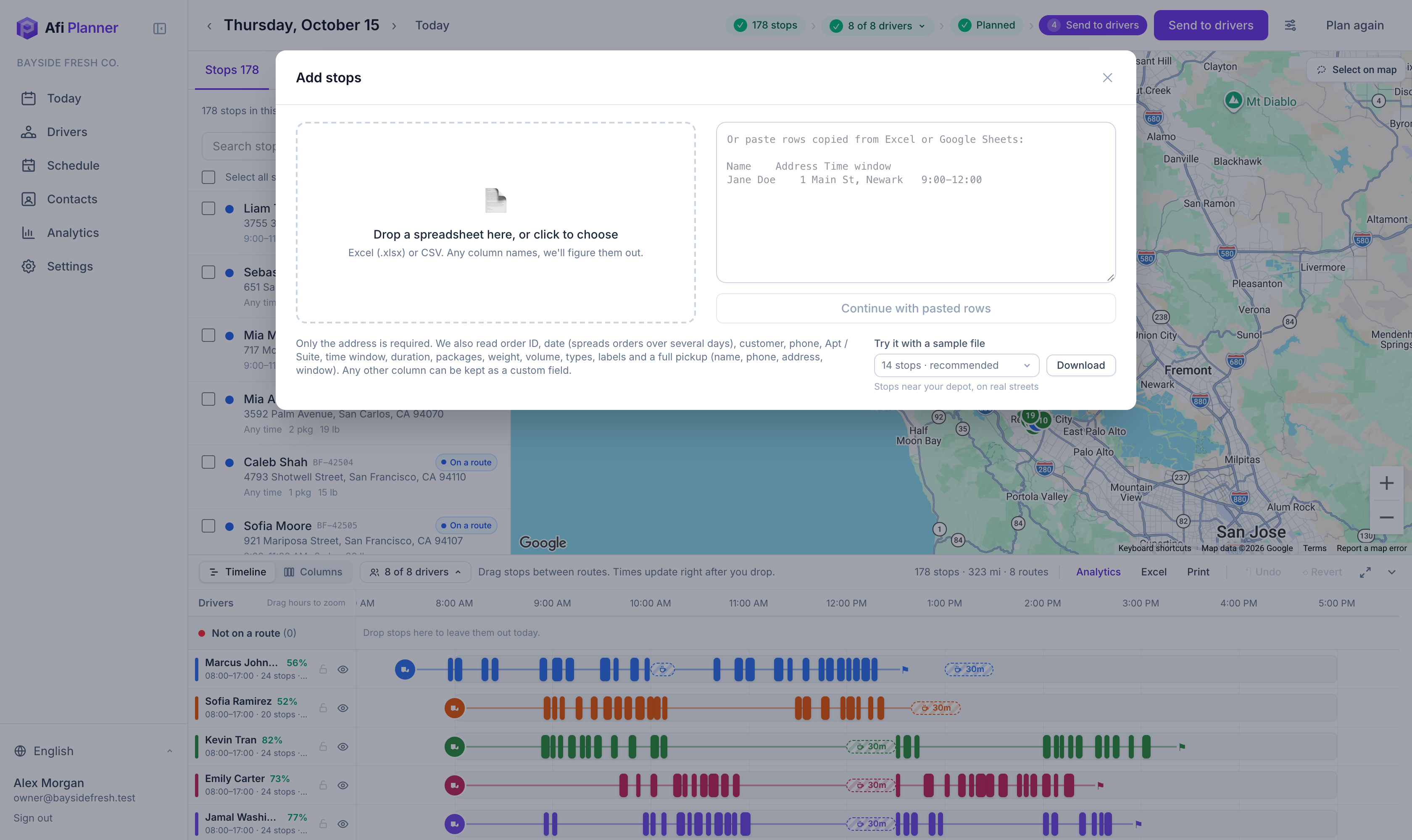
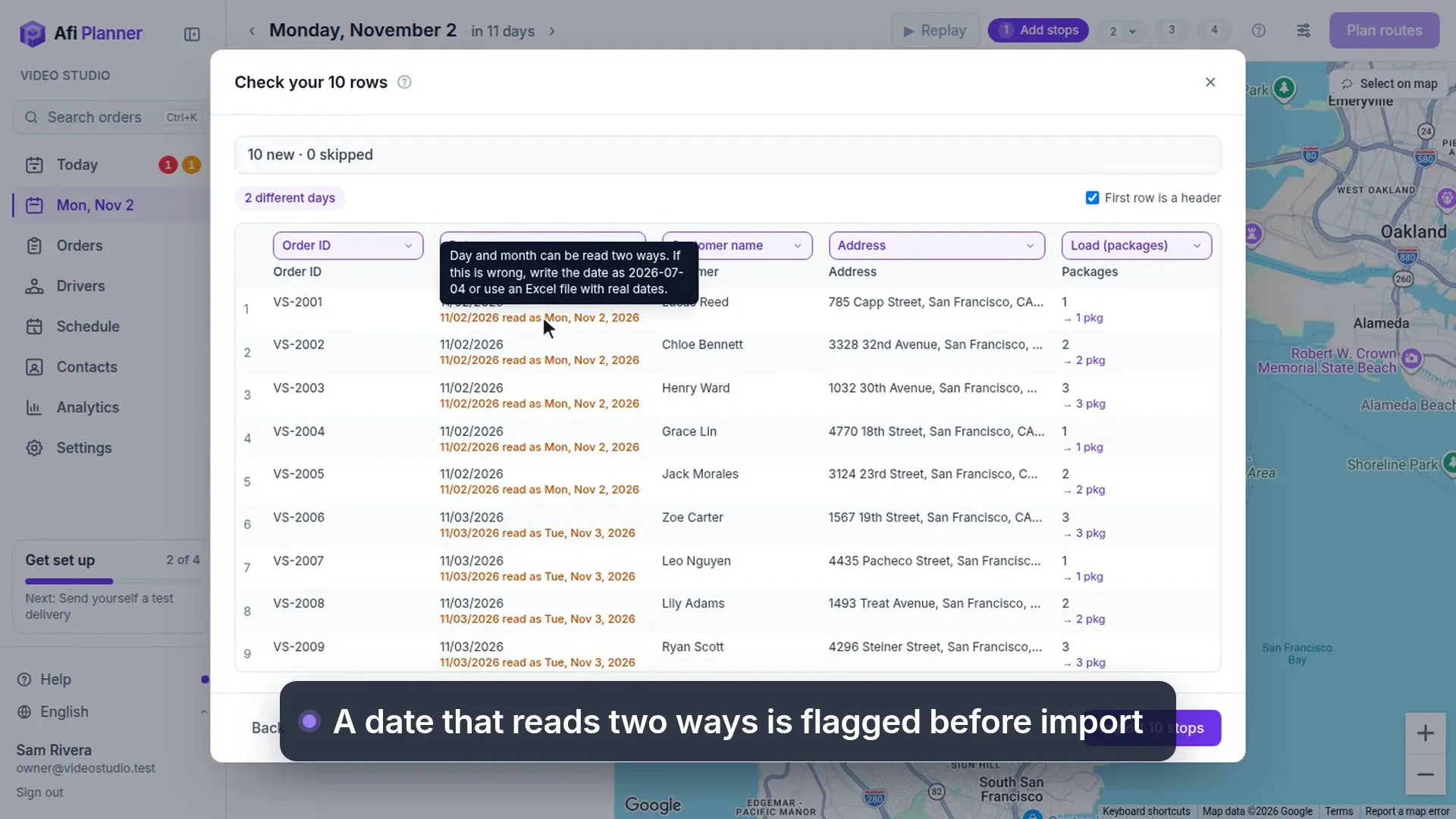
Copy the rows from your spreadsheet and paste them in. Afi Planner recognizes the columns, shows any problems before you import, and puts every order on the map with a quality check on each address.
No templates required
Name, address, unit, phone, time window, packages, weight, notes: common column names in English, Spanish, Vietnamese and Swedish are recognized, and you match any other column once.
Bad addresses caught early
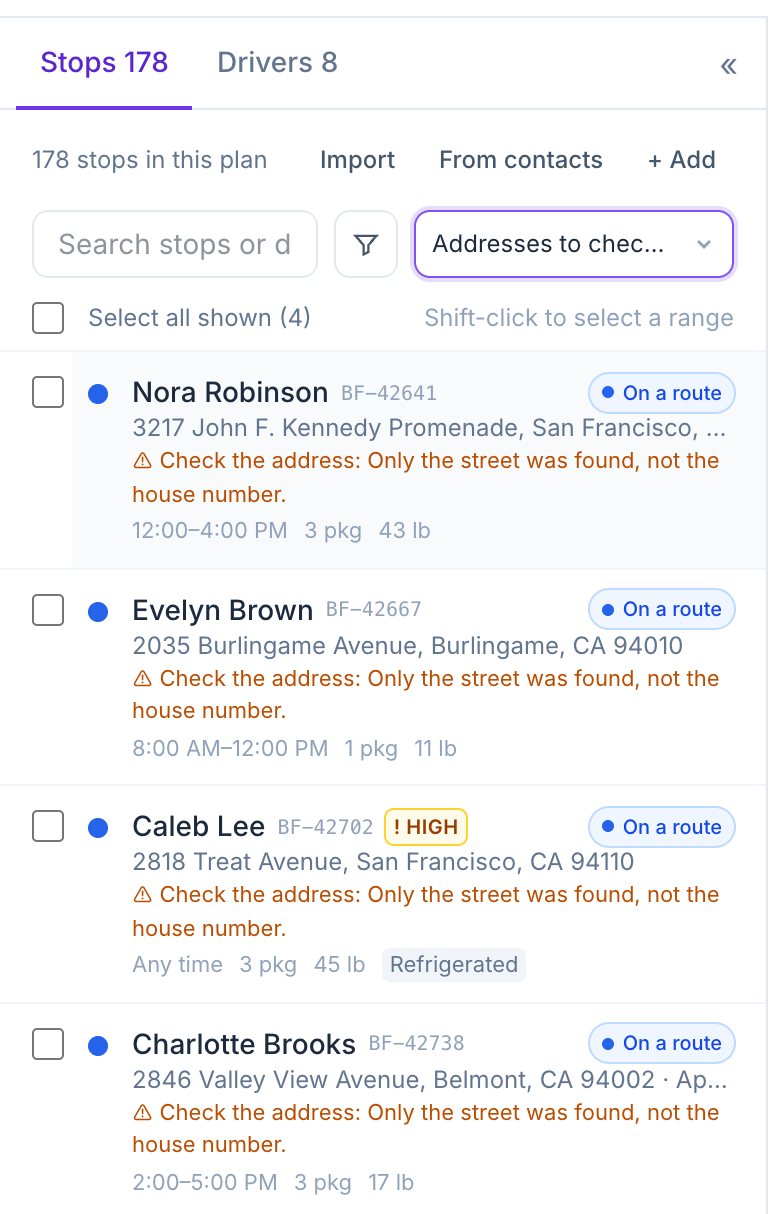
Each address gets a precision rating; vague ones are flagged before a driver gets lost.
Re-import without duplicates
The same order imported twice is updated, not doubled, and delivered orders are never overwritten.
Switching from Routific, Circuit or OptimoRoute
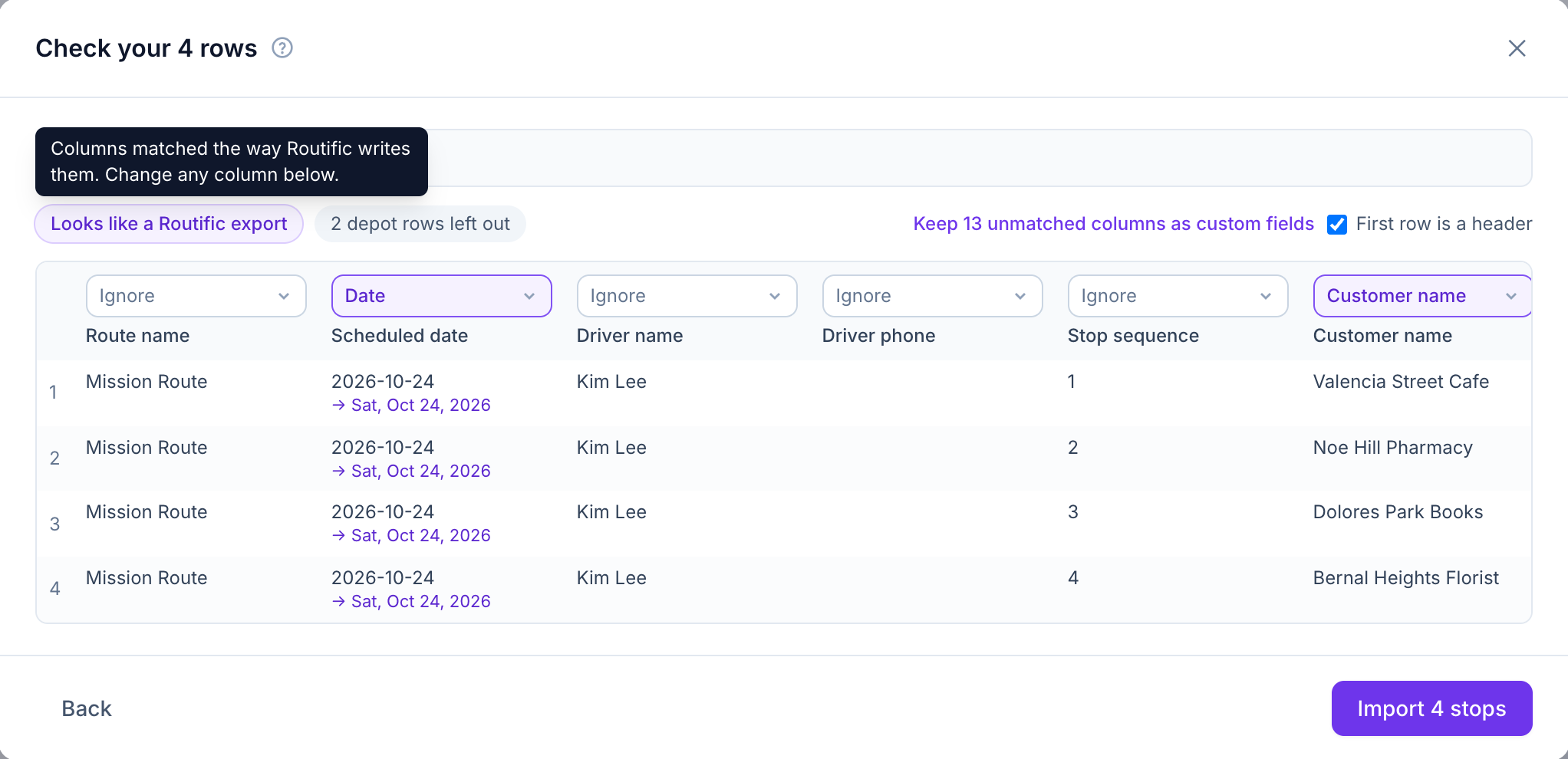
Bring the file you already have. Drop in an export or an import spreadsheet from Routific, Circuit for Teams (Spoke) or OptimoRoute and Afi Planner recognizes it (“Looks like a Routific export”): the columns are matched the way that product writes them, and you can still change any of them before you import.
- Routific: the route export and the order spreadsheet; the start and end depot rows of each route are left out
- Circuit for Teams (Spoke): the import spreadsheet and the detailed data export
- OptimoRoute: the order import template and the route export
- Columns about how the old routes were driven (driver, stop sequence, arrival times) are set to Ignore, so only the orders come in
- Any column left unmatched can be kept as a custom field
Address quality you can see
Stops far from a road or geocoded only to a street are flagged in the stop list and on the map. Drag the pin, or move it next to the nearest road in one click. After planning, a drive that is far longer than the distance between two stops (four times the straight line or more) is flagged in amber on the stop and on the timeline: the pin may sit on a highway the driver can’t stop on. Move the pin from the warning.
Possible duplicates, caught at import
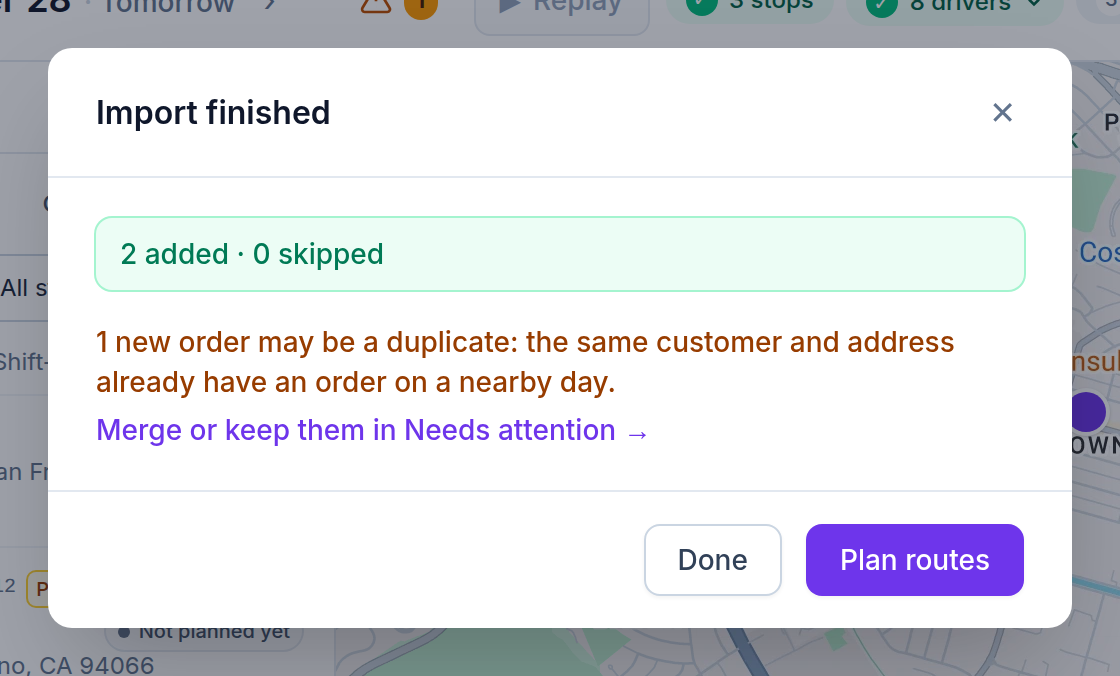
A big file can hold an order for a customer who already has one at the same address a day or two away, under another order ID. When the import finishes, the summary says how many of the new orders may be duplicates, with a link to Needs attention, where you answer each one.
- Same customer (same phone, or else same name), same address, 1–2 days apart
- Merge keeps the order you pick and removes the other without a cancellation message; its tracking link opens the one you kept
- Keep both stops asking about those two orders; Not a duplicate never asks again for that customer at that address
Labels and run sheets
Print 4×6 thermal labels or Letter sheets with a large QR code per package, and a printable run sheet per driver. Drivers scan these labels in the app to confirm the right package. Packages that already carry your own barcodes? Import them with the orders (a Barcode column) or send them through the API, and scans are checked against those.
Orders that come back every week
Copy a day brings the orders of another day into this one, as new orders with the same order IDs, addresses, windows and pickups, and nothing of the old delivery. Leave out what was delivered or failed; orders already on the day aren’t copied twice. Changed your mind? Undo copy.
- Regular customers: set “Delivers every…” on a contact (weekdays, every few weeks or a day of the month) and the orders are made for you 14 days ahead
- Holidays you marked closed and days you don’t deliver are skipped
- Skip one delivery from the order and the schedule goes on with the next
- Choose whether those customers get a “scheduled” message for each delivery
Questions people ask
Frequently asked questions
What file types can I import?
Excel (.xlsx), CSV, or rows pasted straight from Excel or Google Sheets.
Can one file hold several days?
Yes. Add a date column and orders are spread over the right days.
We use Routific, Circuit or OptimoRoute today. Can we bring our orders?
Yes. Import their export or import spreadsheet as it is: Afi Planner recognizes the file, matches its columns and shows you the rows before anything is imported. The file brings your orders; drivers and vehicles you add in Afi Planner.
More features
- Route optimizationOptimized routes that respect how your day really worksLearn more
- Dispatch & live trackingKnow what needs you before your phone ringsLearn more
- Driver appA driver app built for the curb, not the officeLearn more
- Customer trackingFewer “where’s my order?” callsLearn more
- AnalyticsSee how every route really wentLearn more
- Driver pay & timesheetsDriver pay worked out from the routes they droveLearn more
- Integrations & APIConnect your systems in both directionsLearn more
Plan tomorrow’s routes in the next 3 minutes
Start your free 3-month trial. No credit card, no setup call, no installation.