Know what needs you before your phone rings
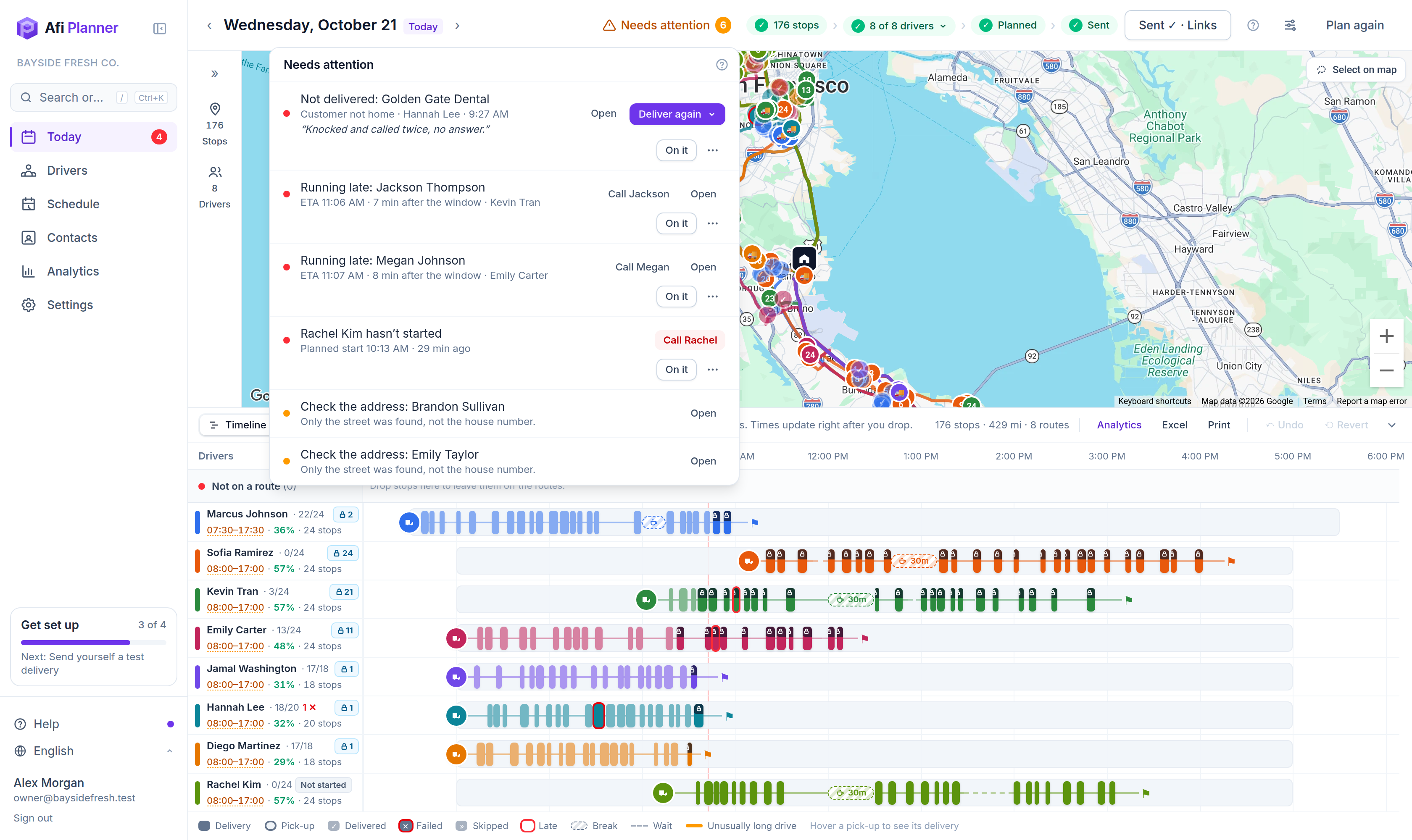
Once routes go out, Afi Planner keeps watching. Every driver’s position, every stop’s status and every ETA updates live, and anything that needs a dispatcher shows up in one list with the fix one click away.
One-click dispatch
Each driver gets their route on their phone with a push notification. No apps to set up on your side, no codes to read out.
Live ETAs
ETAs are recalculated from each driver’s GPS position, so you see a late stop coming while there is still time to act. A driver who starts early pulls the ETAs earlier too, never before a customer’s window opens.
Exceptions, not noise
Failed deliveries, late risks, unopened routes, drivers who haven’t started and phones gone quiet land in one “Needs attention” list. A driver running late on four stops is one line, not four.
Needs attention: one inbox for the whole team
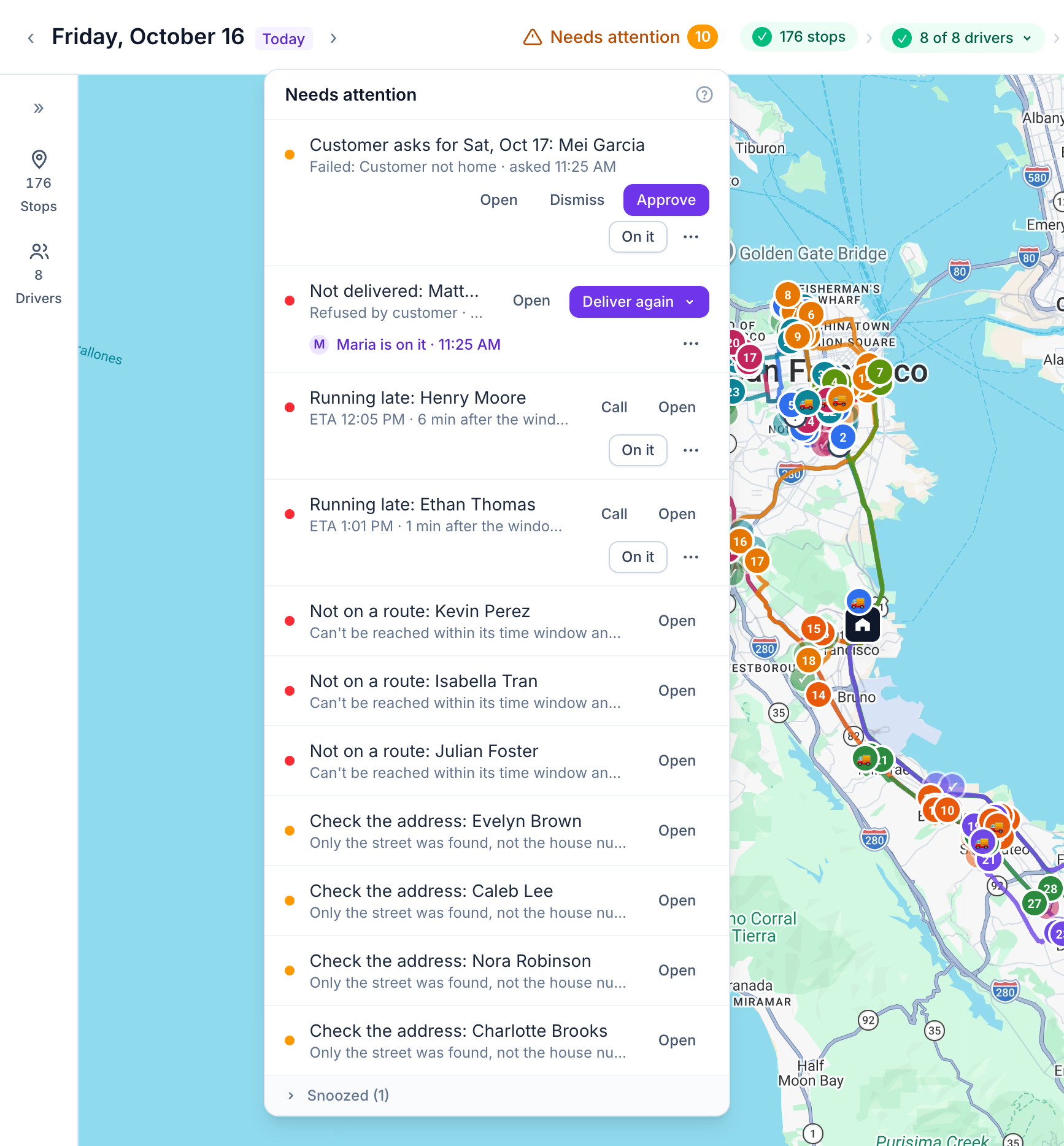
Instead of scanning a map all day, work from one list your dispatchers share. Each item says what happened and offers the next step: deliver again, call the driver, copy the route link or approve the day a customer asked for. Click On it and your teammates see “Maria is on it”, so nobody calls the same driver twice. Snooze an item for later, or resolve it with a note. Once routes are sent, a Live chip at the top of the day keeps the score (“112/176 done”, “2 late”) and opens the list in one click.
- Failed deliveries with the driver’s reason and photo
- A driver’s Need help, with where they are and at which stop
- Vans that left the depot without some of their stops, or without a load check you require, and a package scanned into the wrong van
- Customers who asked for another day after a missed delivery, ready to approve here, in the stop’s card or on Orders
- Drivers whose app says they haven’t started 15 minutes after the planned start, with a Call button
- A rescue driver who still hasn’t collected the parcels from the other van 30 minutes after they were due there
- Deliveries nobody got to by the end of a driver’s day, moved to another day in one go
- Stops at risk of missing their window, based on live ETAs, one line per driver (“Kevin Tran: 4 stops late, up to 15 min”) that opens to each stop
- Routes not opened yet, phones that stopped sending GPS, missing proof and addresses to check
- Low ratings on their own Follow-ups tab, with the customer’s reasons
- An end-of-day email you can turn on in Settings → Notifications: the day’s numbers, what is still open and who is on it
Orders: every order, every day, in one list
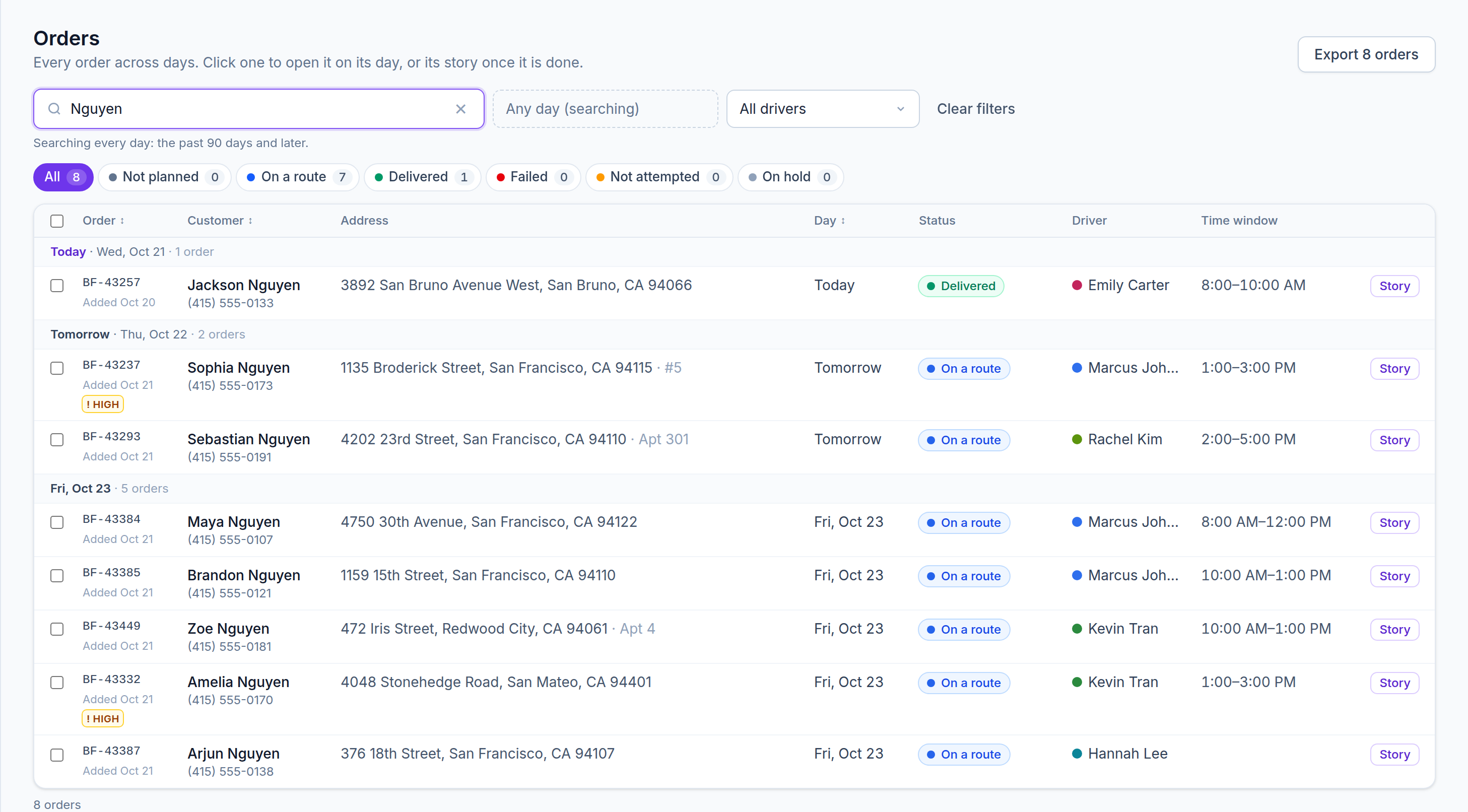
Not every question is about today. Orders lists every order across days, today and the days ahead first, then the days that are over. Chips with counts show what each one needs: not planned, on a route, delivered, failed, not attempted, on hold or cancelled. Search by name, order ID, phone, email or address and every day is searched, so an order from three weeks ago turns up too. Click a row: an open order opens on its day with the stop selected, a finished one opens its story with every attempt, message and proof.
- Failed orders show the driver’s reason and note right in the list
- Tick orders, or every order that matches, and move them to another day: a preview says how many move, how many failed ones go again with the same tracking link and how many delivered ones stay
- Put orders on hold and release them, with Undo
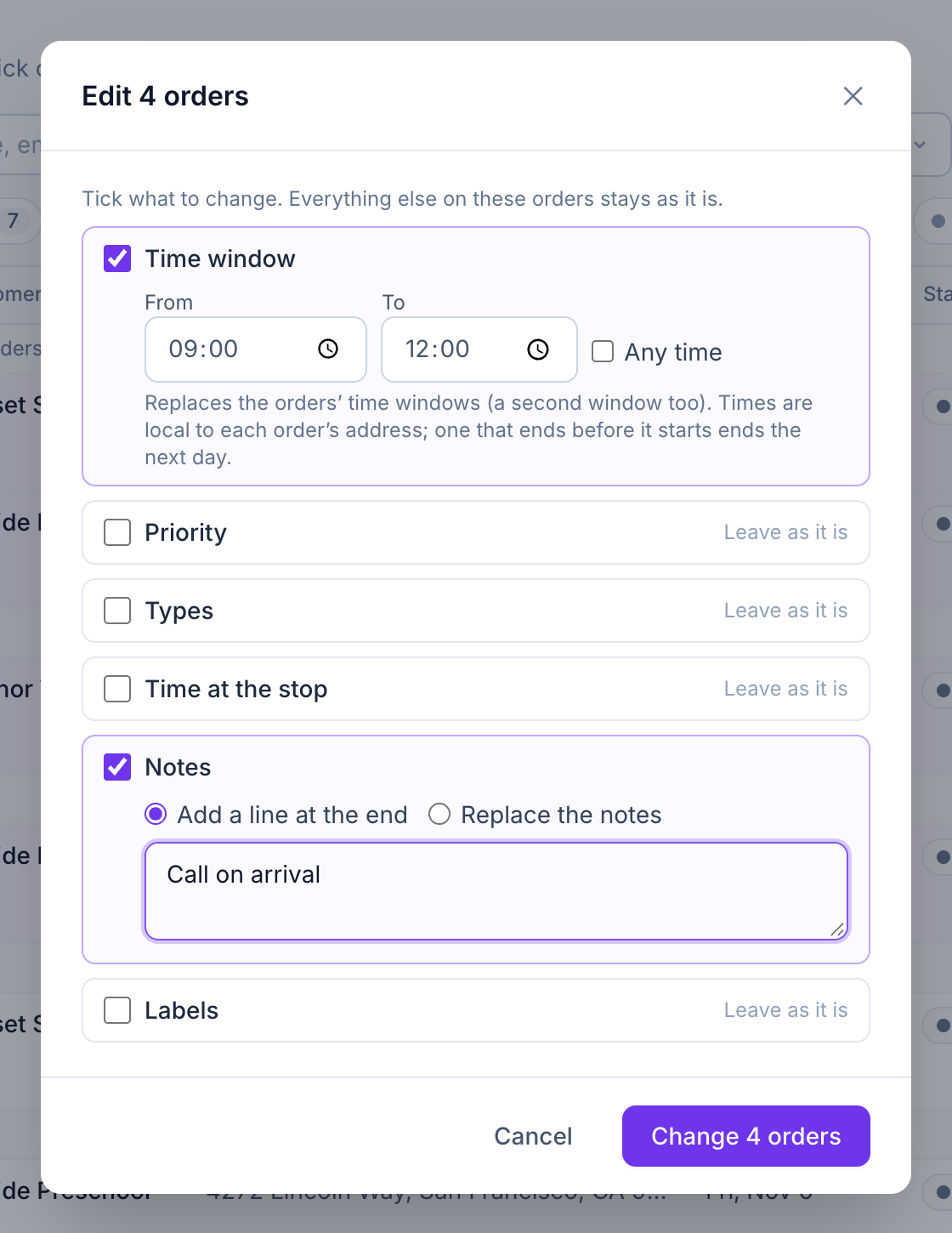
- Edit orders… changes the time window, priority, types, time at the stop, notes or labels of every ticked order at once, with Undo
- Cancel orders… keeps them as canceled, with the reason, instead of deleting them
- Export what you see to Excel, for the warehouse or a client
- Routes already sent that changed are listed, with a link to the day to send the updates
- Customer service starts here: find the order, read its story, see the low ratings to call back
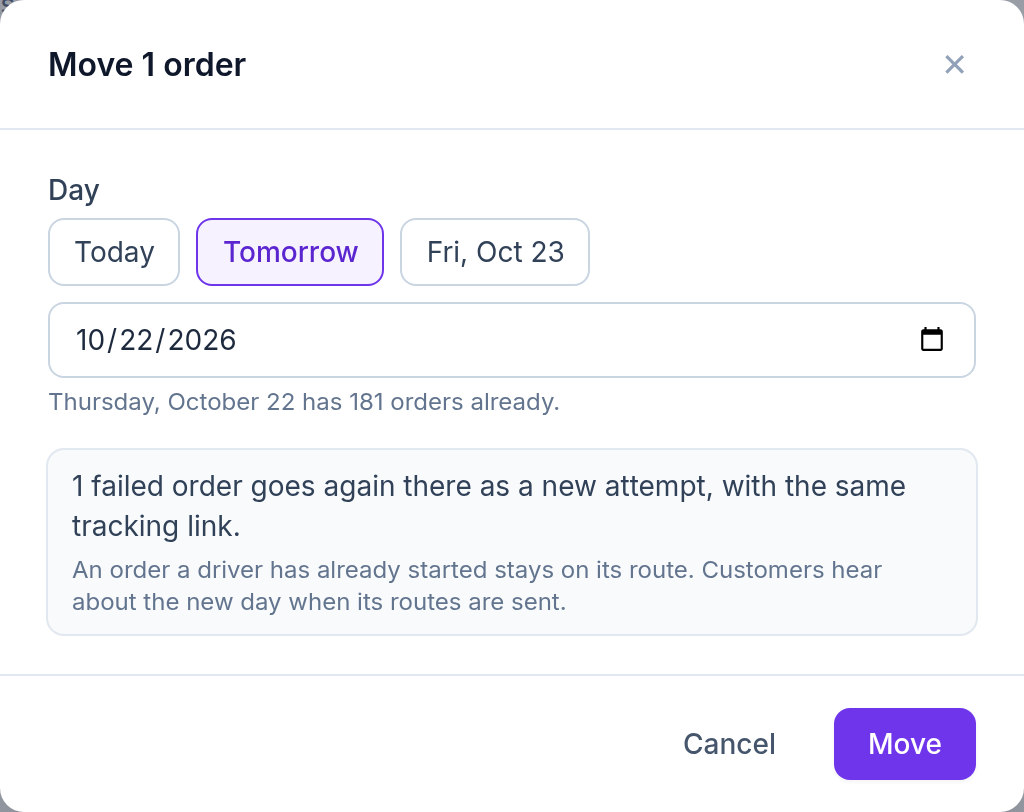
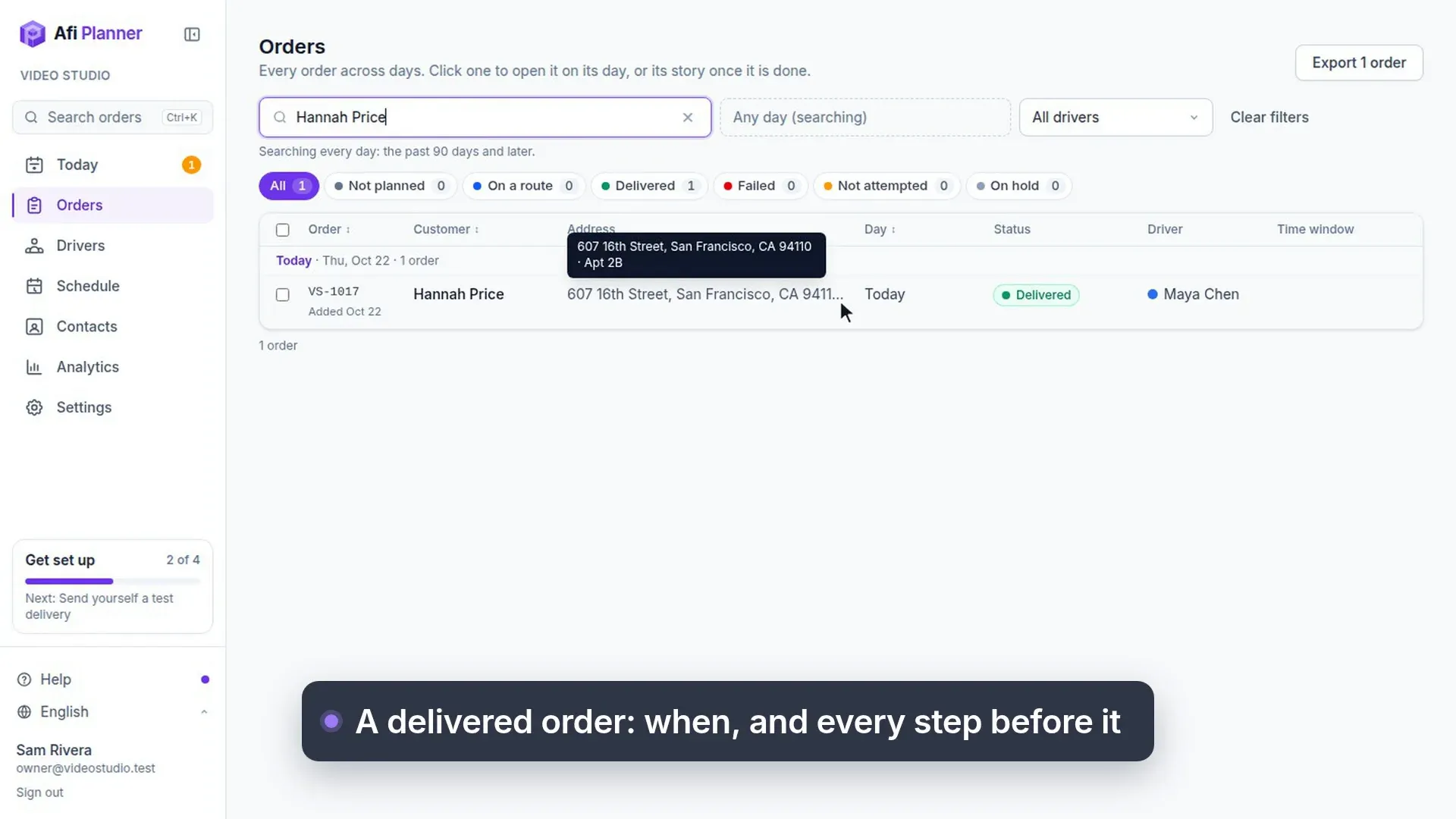
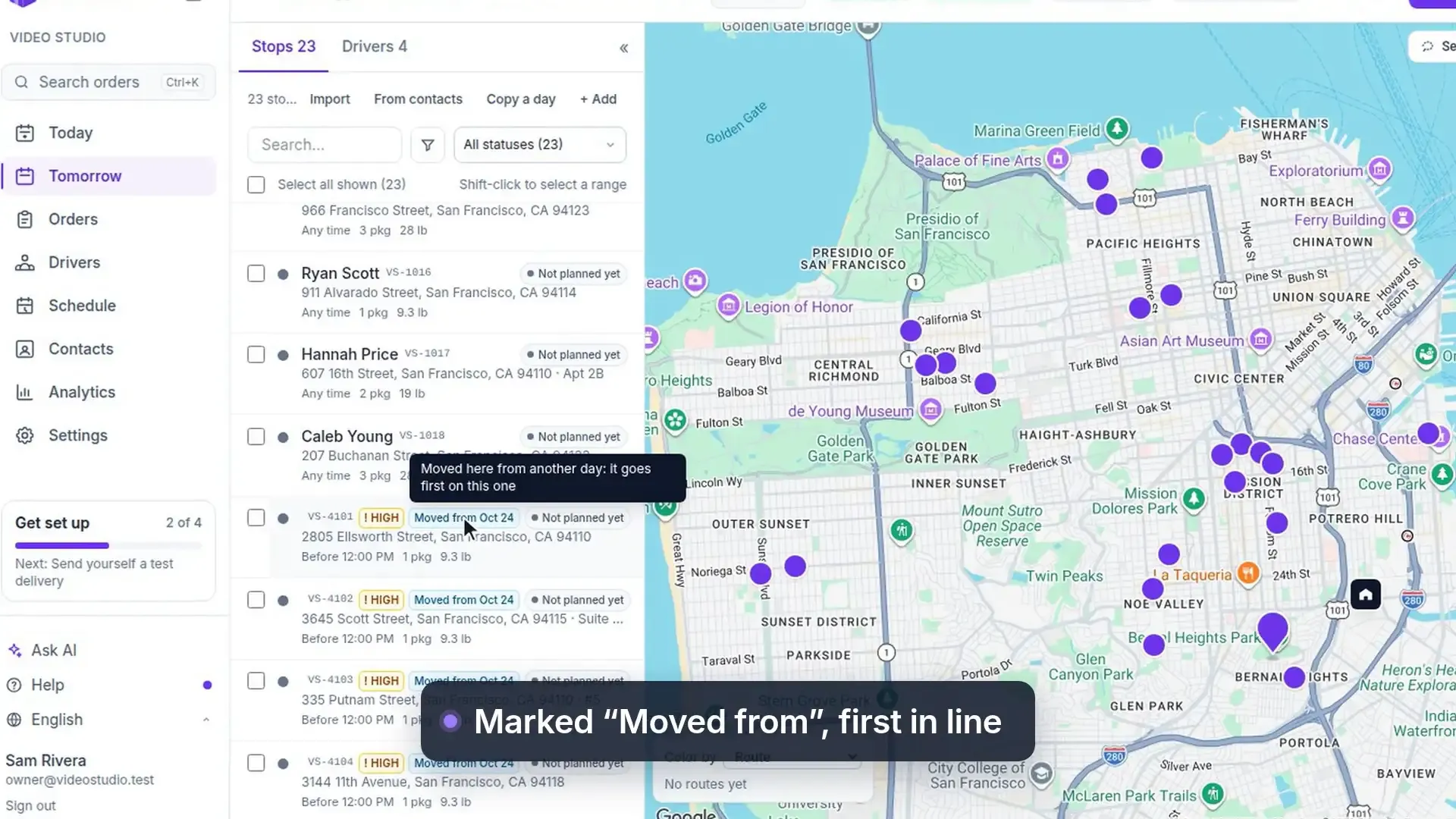
Move orders to another day, first in line
A van is down or the day is too full: tick the orders, on Orders or on the board, and pick the new day. Choose the delivery time there too: keep each order’s time window, morning if possible (before noon when the route allows it, later that day rather than left out) or any time of day. On the new day the orders get High priority and a “Moved from Oct 24” badge on the board, in Orders and in the order’s history, so they go first and everyone sees why. You can lower the priority, and Undo on Orders puts them back on their first day with their old priority and window.
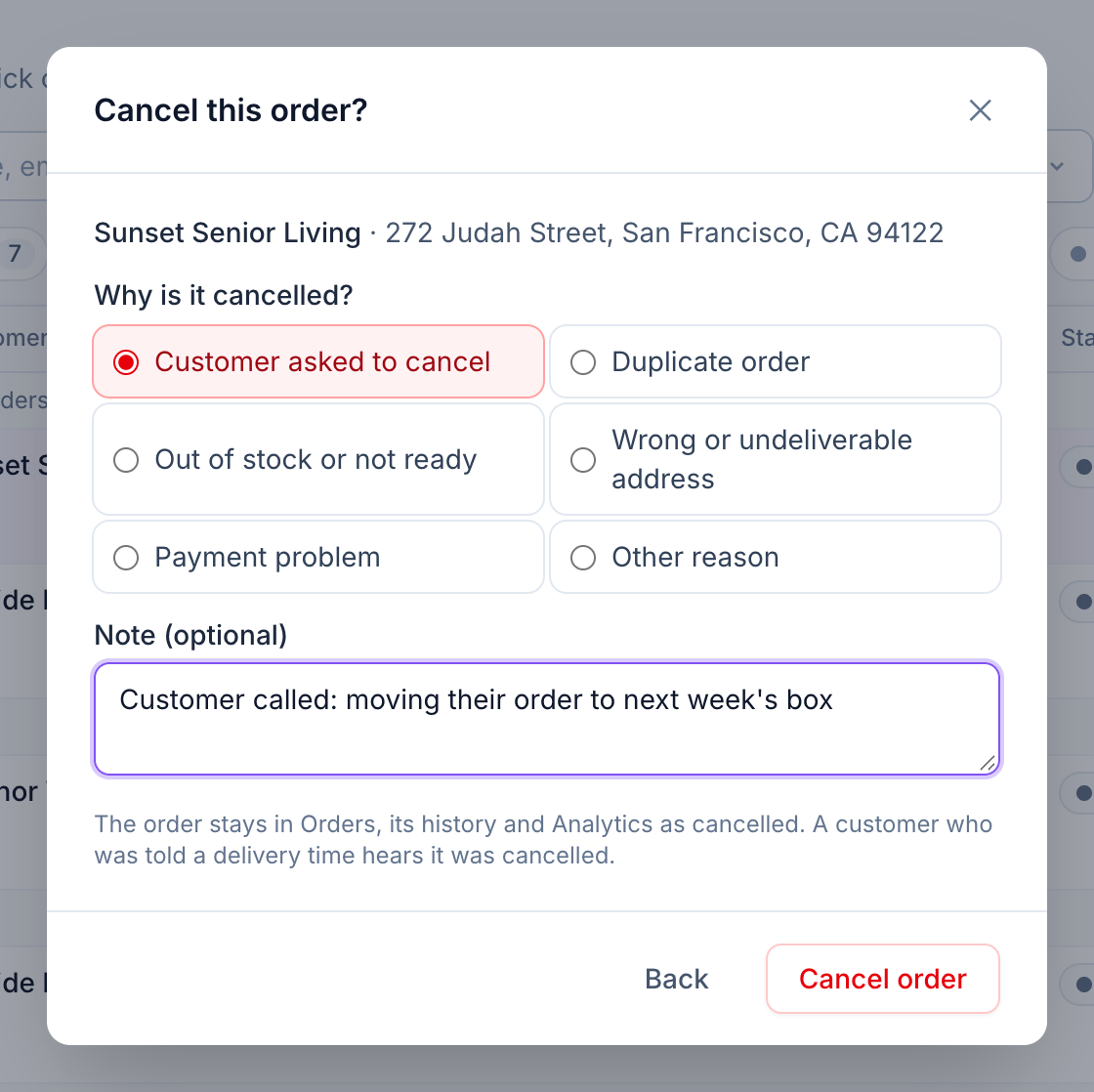
Cancel an order, keep the record
A customer cancels, an order was entered twice, the stock isn’t ready. Choose Cancel order… on the stop, or Cancel orders… for the orders you ticked on the day or on Orders, and pick why: customer asked to cancel, duplicate order, out of stock or not ready, wrong or undeliverable address, payment problem, or another reason with a note. The order doesn’t disappear: it stays in Orders under Cancelled, in its history with who canceled it and when, and in Analytics.
- A driver who has the order sees it canceled on their route and can’t deliver it; a parcel already in the van says to bring it back to the depot
- A customer who was told a delivery time hears it was canceled
- Canceled by mistake? Restore opens the order again as long as no driver had it; the cancel stays in its history
- Delete is for orders entered by mistake. A plan or an order already sent to drivers can still be deleted, after a warning that says which drivers have it and lets you move, cancel or delete the orders not done yet. Delivered and failed orders always stay, with their proof
Edit many orders at once
A store moves its delivery hours, or a whole route needs “Call on arrival”. Tick the orders on the day or on Orders and click Edit orders… (it says how many, as in “Edit 4 orders…”). Tick only what should change: the time window, priority, types, time at the stop, notes (add a line or replace them) or labels (add or remove). Everything else on those orders stays as it is.
- The same rules as editing one order: orders on a route already sent change only their notes and labels, finished or started ones only their notes, and canceled ones stay as they are. The dialog says how many before you save
- After saving, the orders left as they were are listed by name, with why
- Undo in the message puts the orders back as they were, except any changed again since
Replay any day, minute by minute
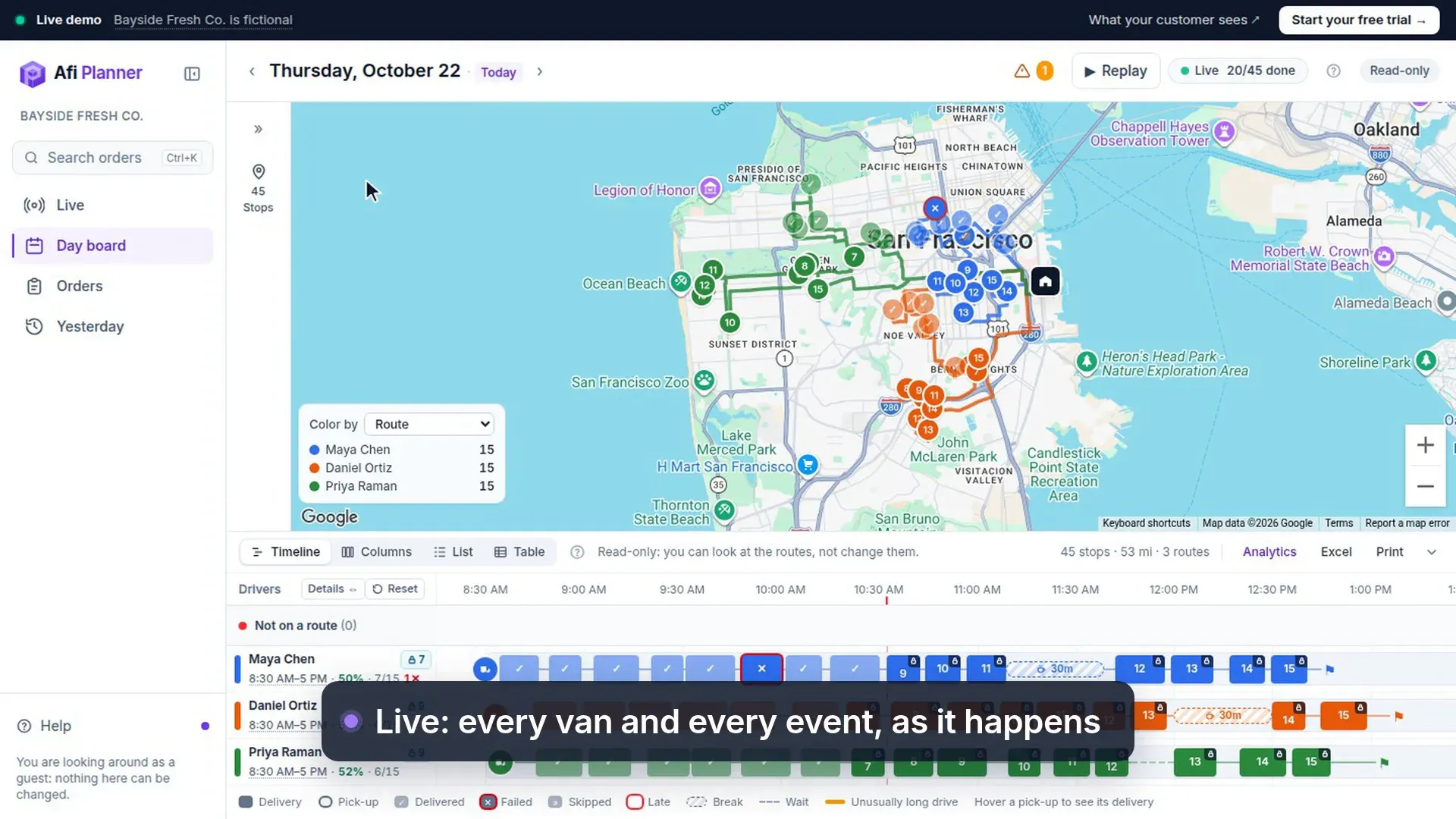
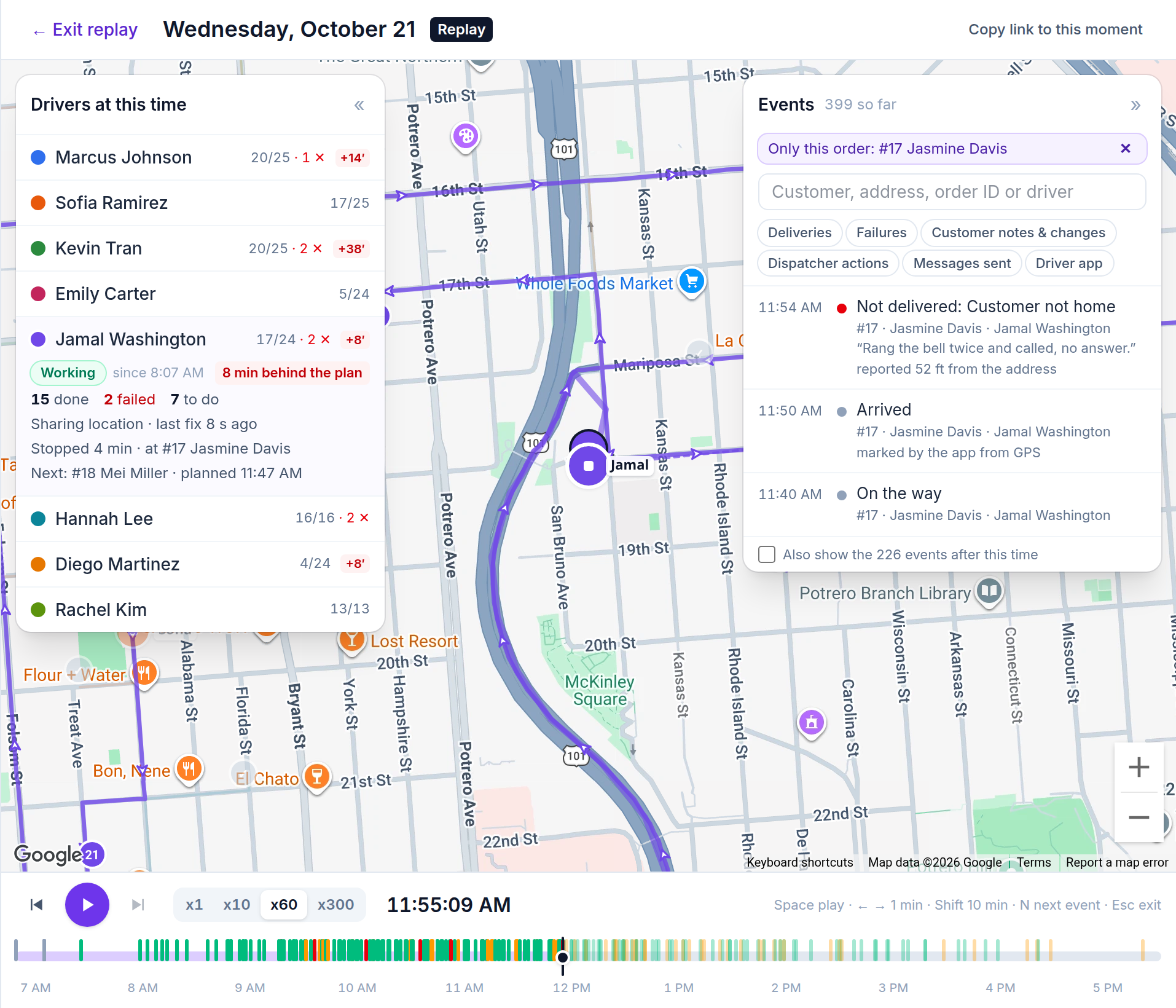
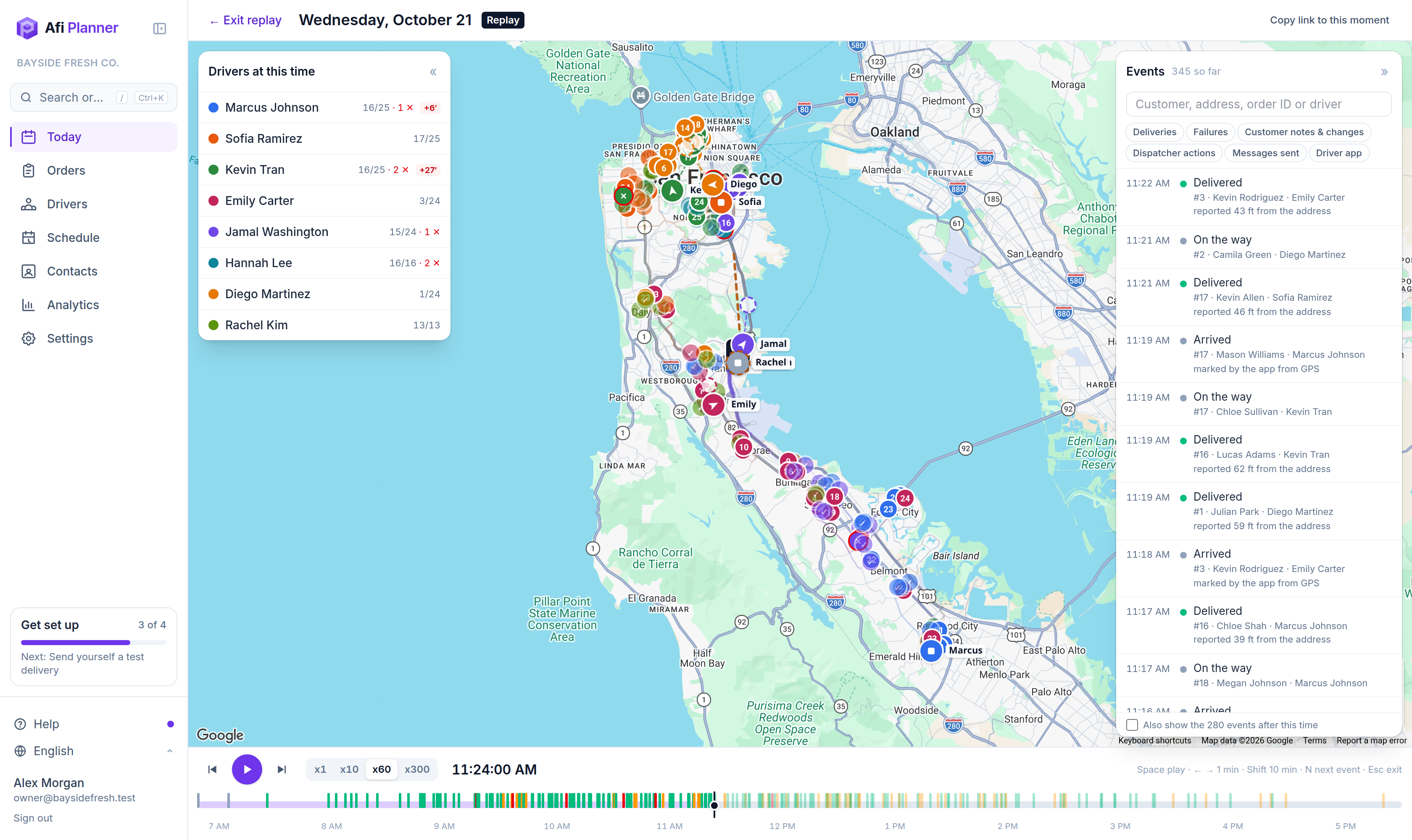
A customer says the driver never came. Open that day, click Replay and see where the van was when the driver reported: every van moves along its real GPS track with a 15-minute trail, each stop turns delivered or failed at the minute it was reported, and a hollow “ghost” shows where the plan put the driver, so lateness is plain to see. Play at x1, x10, x60 or x300, drag to any minute, or jump straight to the next event.
- Each driver at that moment: working or not, “Stopped 4 min · at #17”, minutes behind the plan, stops done, failed and to do, the next stop and its planned time
- Every event in one list: deliveries, failures with the driver’s reason and note and how far from the address they reported, customer changes, dispatcher actions and messages sent; filter it, search it, click an event to go to that minute
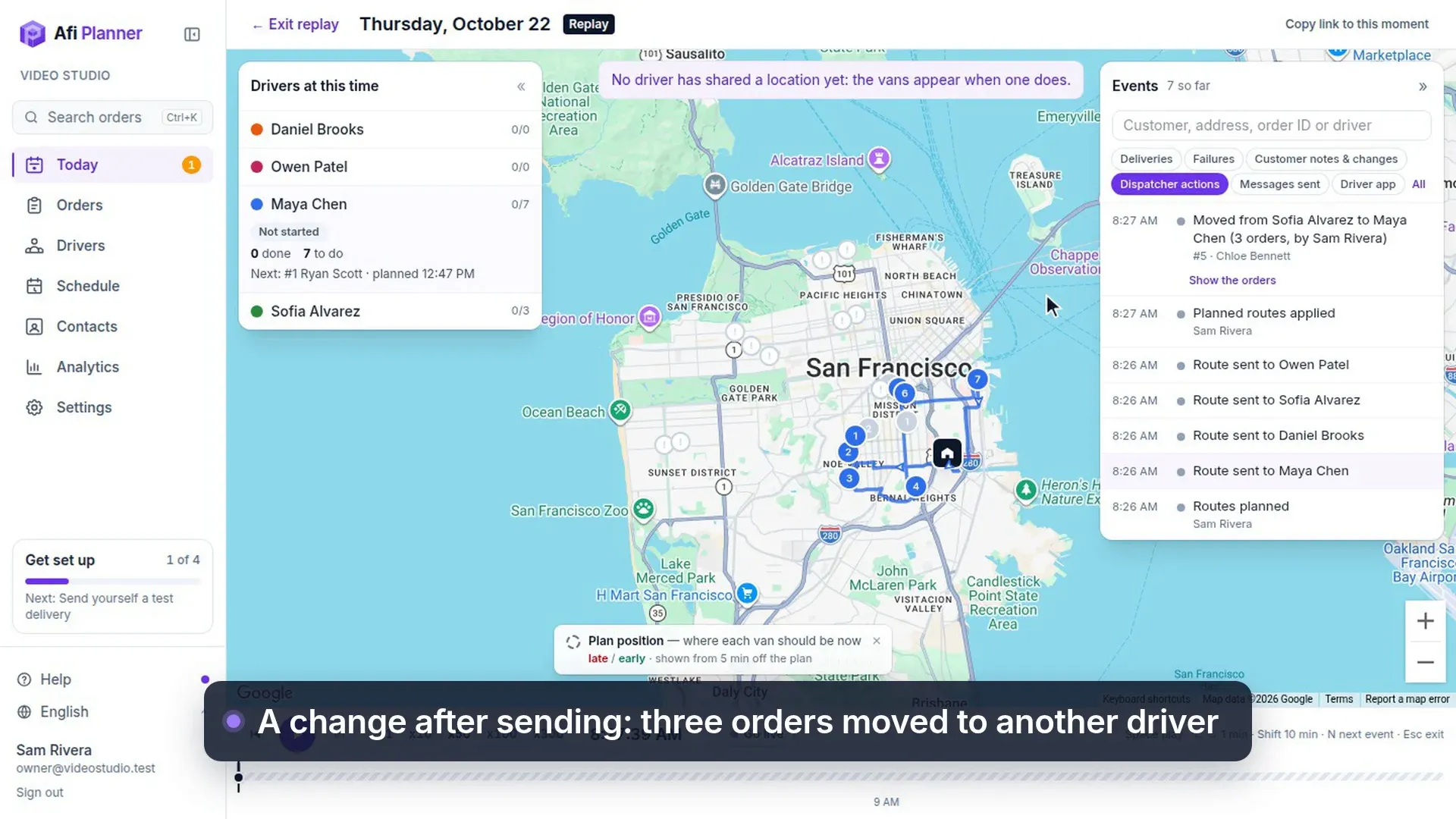
- Each minute shows the routes as they were sent at that time, and an order given to another driver after sending says “Moved from Jamal to Chris” and who moved it
- A report the driver took back stays in the list, struck through, with the time it was taken back
- Gaps in a GPS track are drawn dashed, with how long the phone had no signal
- Copy a link to the exact moment for a teammate
- One click from where the question comes up: a failed delivery in Needs attention, “Replay this driver” for a driver who stopped or went silent, each attempt in an order’s history, a low rating and the orders behind any number in Analytics
- Today: Live follows the day 30 seconds behind, so the vans glide between GPS points; Real time shows the latest position at once, and playing back today’s morning runs straight into Live
A fictional delivery company in the middle of its day: watch the vans move in Live, replay the day so far and open any order. Read-only, no sign-up.
Change plans after sending
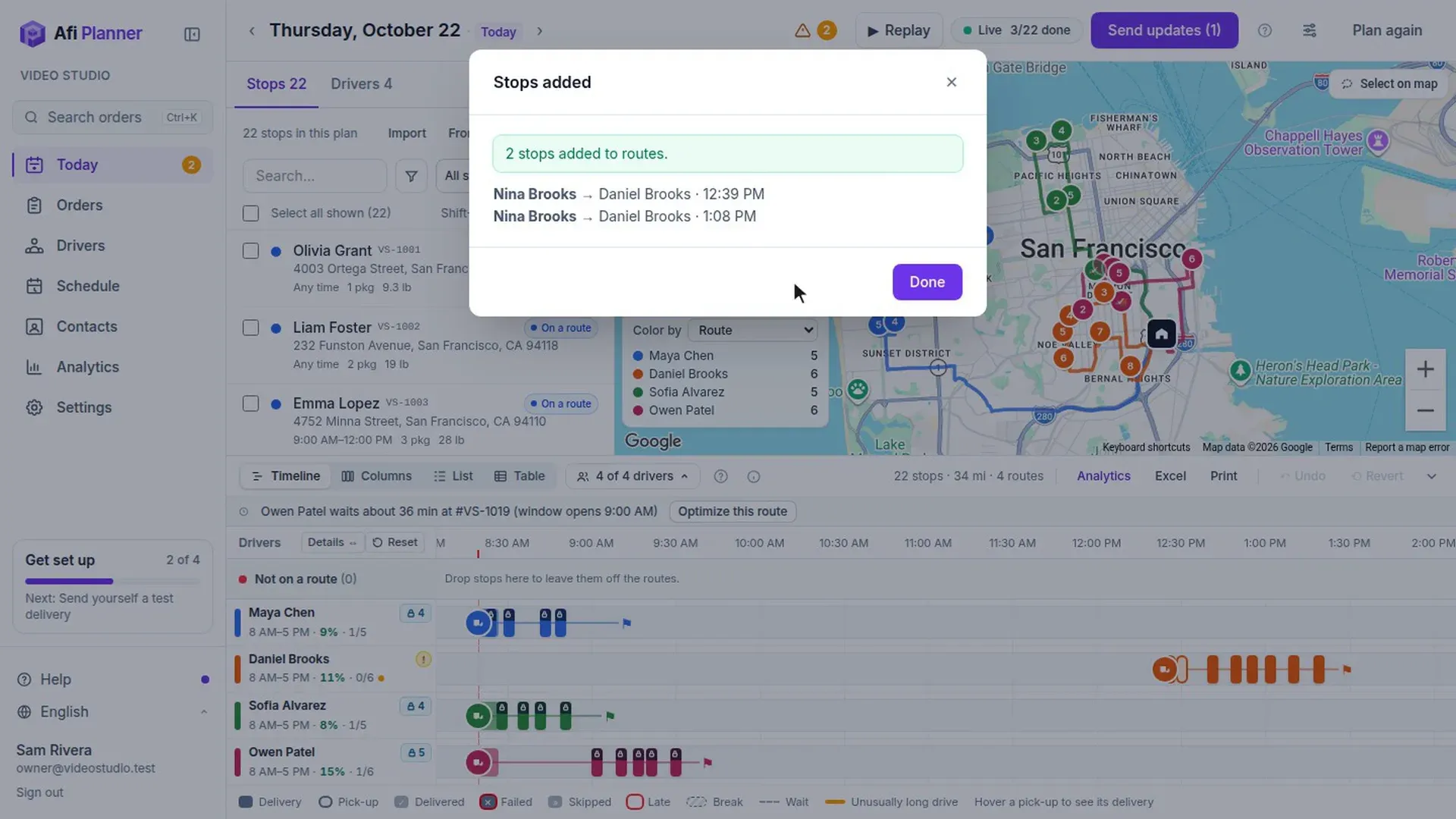
Days change. Move stops, add a rush order or re-plan the afternoon: drivers keep their current route until you press “Send updates”, then drivers on the app get one notification with how many stops were added or removed. An order added to a van that already left is marked “Needs pickup at depot” until the driver picks it up. A customer cancels at noon and the parcel is already in the van: open the stop and click Take off and bring back to depot; the stop leaves the driver’s list at once and their app tells them to bring the parcel back to the depot.
When a driver can’t go on
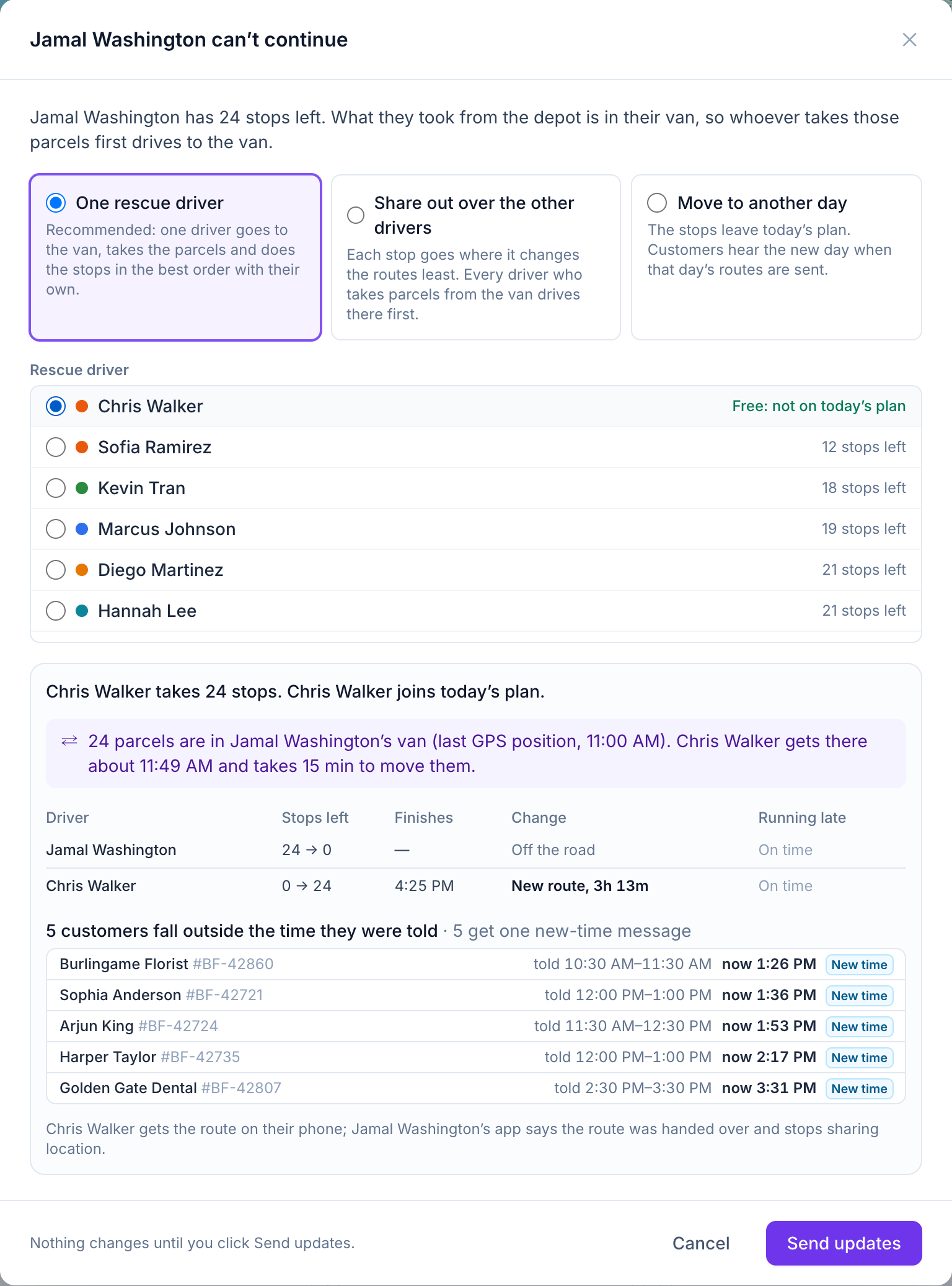
A driver calls in sick or the van breaks down mid-route. Two entries in the route’s ⋯ menu take it from there, and nothing changes until you click Send updates.
- Give this route to…: the rest of the route goes to another driver as it is, in the same order, with times worked out again for their hours, vehicle and skills; a spare driver joins the plan
- Driver can’t continue…: one rescue driver meets the van and takes the parcels, the other drivers take the stops with the fewest changes, or the stops move to another day (their customers hear the new day when that day’s routes are sent)
- A preview shows each driver’s extra minutes, who runs late, which customers fall outside the time they were told and who gets a new-time message
- Once sent, the old driver’s app says the route was handed over and stops sharing location
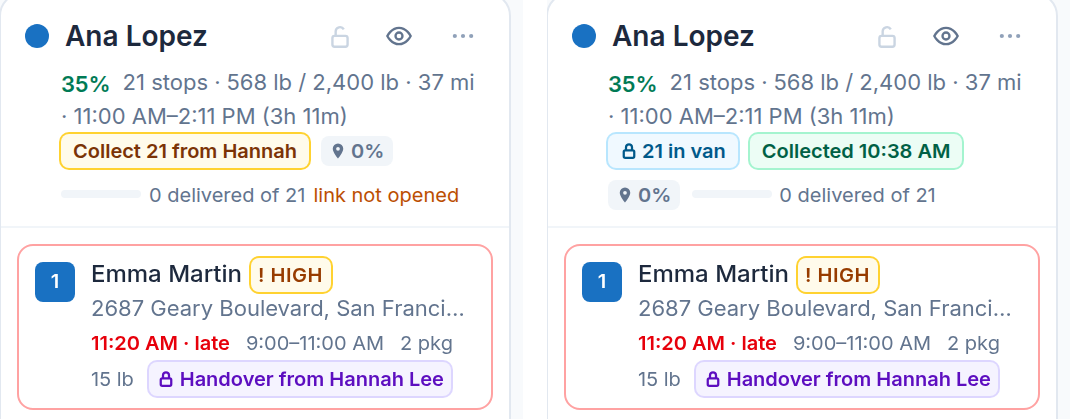
- The rescue driver’s route starts with “Collect 21 parcels from Hannah Lee’s van”, and your board shows “Collect 21 from Hannah” in amber until they tap I have them; only then does the board count the parcels in their van (“21 in van”), with “Collected 10:38 AM” in green
- Orders still at the depot: a rescue driver who already left gets a real “Pick up at the depot” stop before them, so the preview’s times, late stops and extra minutes include the drive back; a driver still at the depot just loads them
A driver who is off today stays on the board
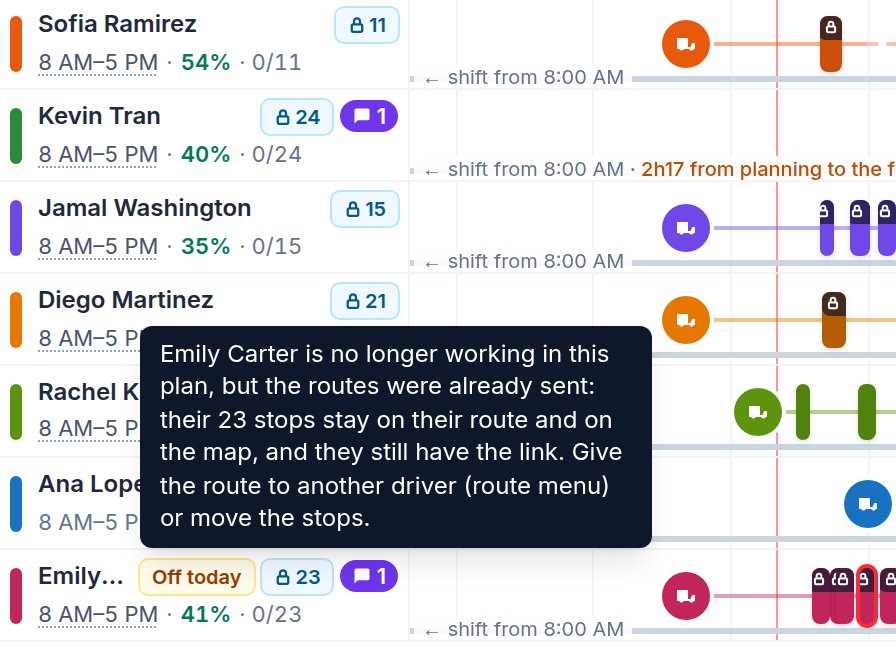
A driver calls in after the routes went out and you untick them as working. Their route doesn’t disappear: it stays on the board and the map with a “Not working today” tag (“Off today” on the timeline), their stops stay on it and they still have their link, until you give the route to another driver or move the stops.
Need help, answered without a phone call
Drivers tap Need help and pick what is wrong: vehicle broke down, running late, safety problem, package problem or something else (with a few words). It reaches Needs attention with their position and current stop, even if they sent it with no signal. Answer with a short message: the driver gets it in the app, and you see “Seen 10:42” when they open it.
- Message drivers: one short message to every driver on the road, or the ones you pick, each with their own Seen
- Requests and answers show in the order’s story and in the replay of the day
- No chat to watch: a few set reasons and a short answer, so nothing gets lost in a thread
Every route at a glance
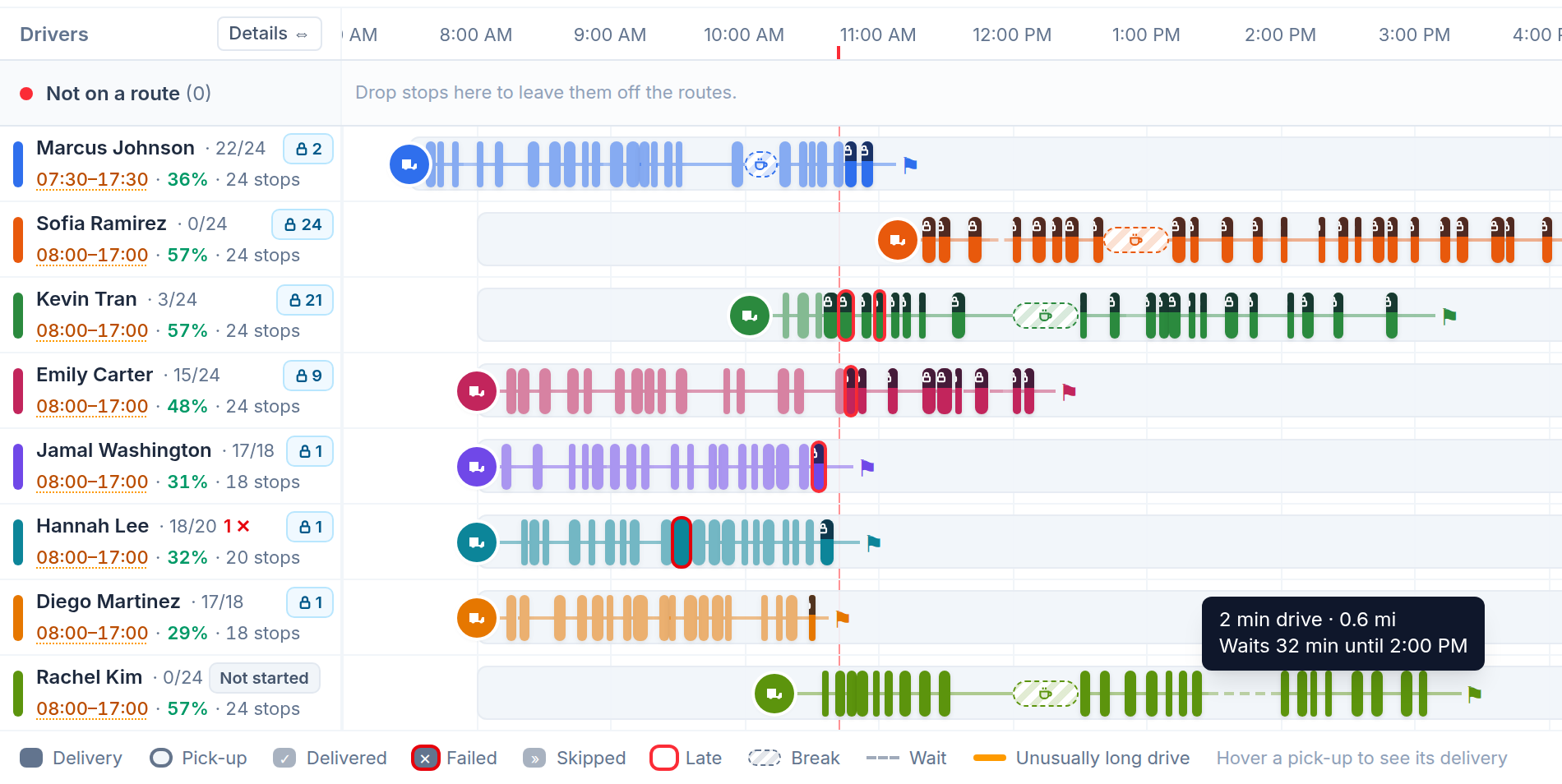
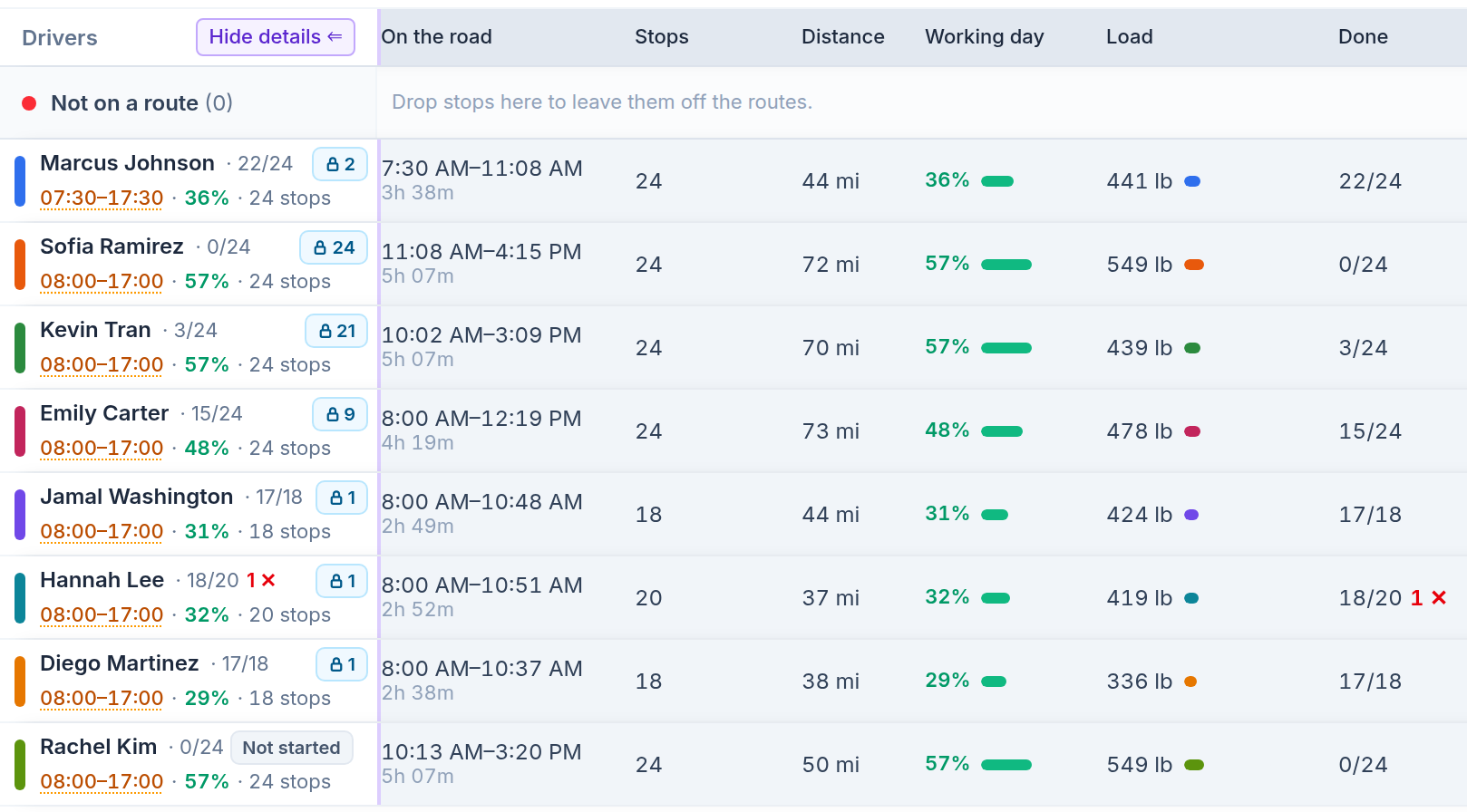
The timeline shows each driver’s day from first stop to last, breaks included, with progress as stops are completed. Between stops, a solid line is driving and a dashed line is waiting for a window to open; hover it to read “32 min drive · 25 mi” or “Waits 25 min until 2:00 PM”. Details ⇔ lines the drivers up side by side: time on the road, stops, distance, working day, load and progress. Switch to Columns to see each route as a list, List for compact rows, or Table for every order with sorting, search, filters and totals. Afi Planner remembers the view each person picked. Click a driver’s name and their route is drawn on top of the others, with arrows showing which way the van goes. Big days stay smooth: on a day of 2,500 stops, switching views, scrolling, searching and dragging stay quick, because the board only draws what is on screen.
Every stop in one click
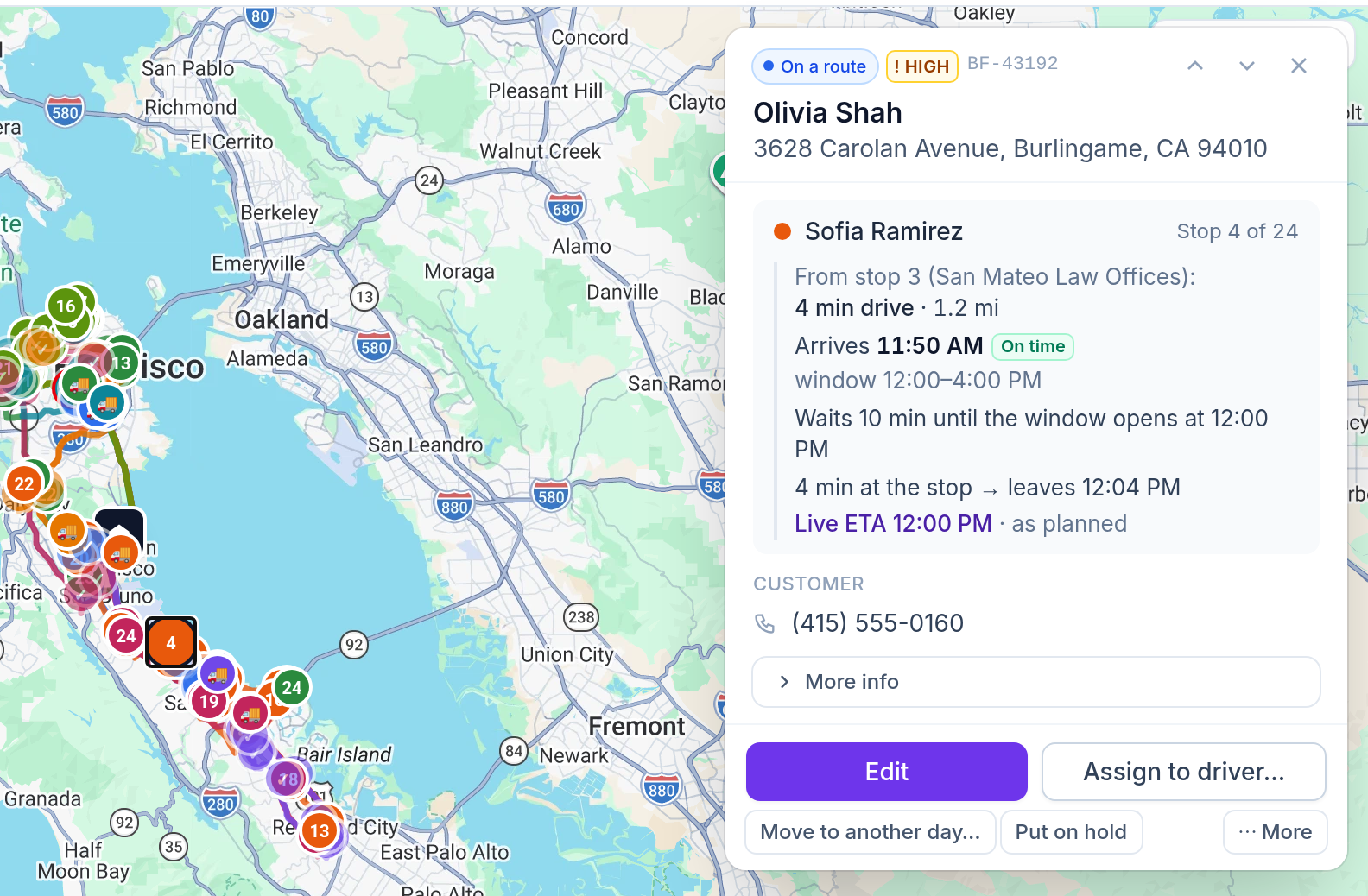
Click a stop on the map, in the list or on the timeline and its details open in a card over the map: driver and stop number, then the drive that gets there (from which stop, how long, how far), the arrival against the time window, any wait until the window opens and when the driver leaves, with the live ETA once the route is out. Below are the customer, their latest instructions, packages, notes and, once done, the proof. Edit it, assign it to a driver, move it to another day, put it on hold or copy its tracking link from there. Stops fixed to a driver say so, and ↑ ↓ walk along the route.
A stop list that reads like the map
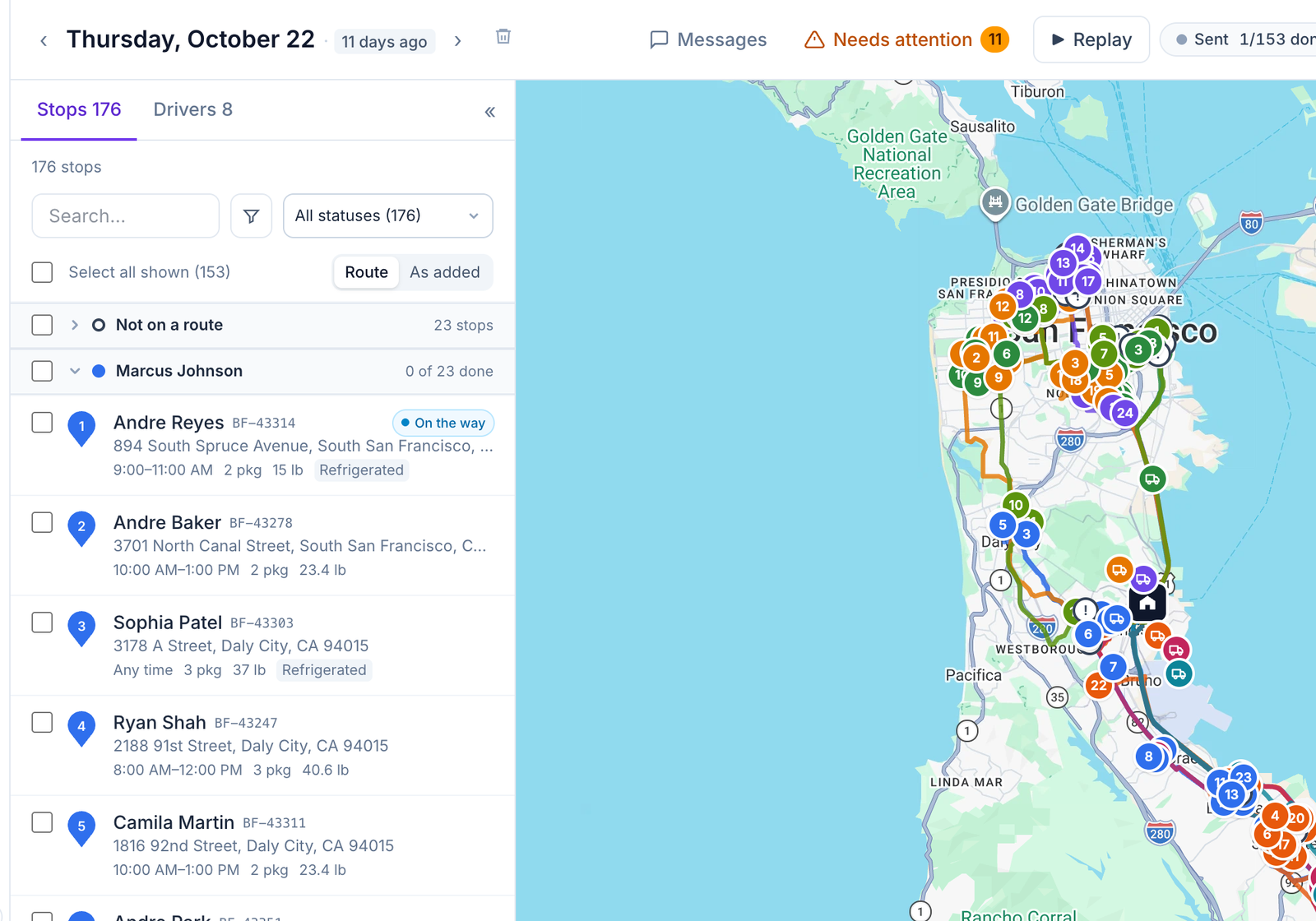
The list beside the map speaks the map’s language. Each stop carries the same pin as on the map, in its route’s color with its number, so pin 7 on the map is stop 7 in the list. Stops are grouped by route in driving order, under a header with the driver’s color, name and progress (“3 of 23 done”) that stays at the top as you scroll. Stops not on a route come first, so nothing waiting for a driver hides at the bottom. Tick a header to select the whole route, click it to fold the route away. Prefer the order you added them in? Switch Route to As added, and Afi Planner remembers your choice.
- Search and filters keep the route headers of the stops they find
- Shift + click and Select all shown work across routes
- Phone numbers that need fixing are one line above the list, not a warning on every row: click it to see just those orders
Move a stop by picking the route
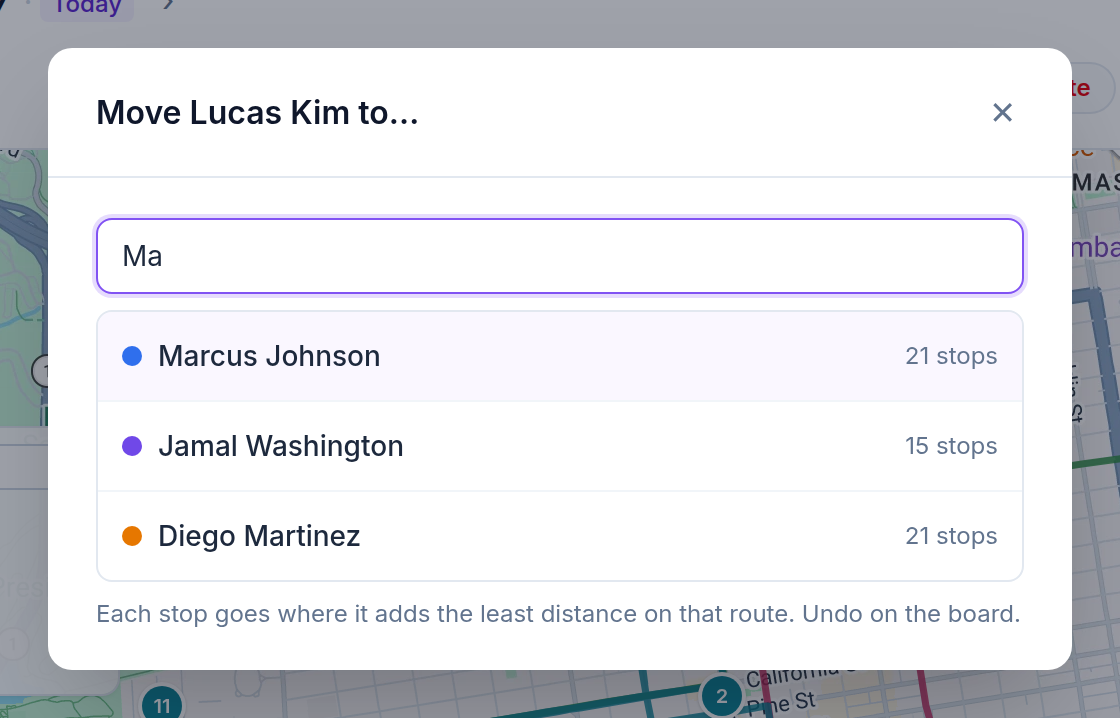
With 30 drivers on the board, the route you want can be a long drag away. Pick the stops and click Move to… on the board’s bar, or Move to route… on a stop’s card, then type a few letters of the driver’s name and pick the route. The stops land where a drag would put them: each where it adds the least distance on that route, with Undo on the board.
- The same rules as a drag: stops a driver already started, on a locked route or already in a van stay where they are
- The route they are on now is greyed out, and a driver who isn’t working today is marked
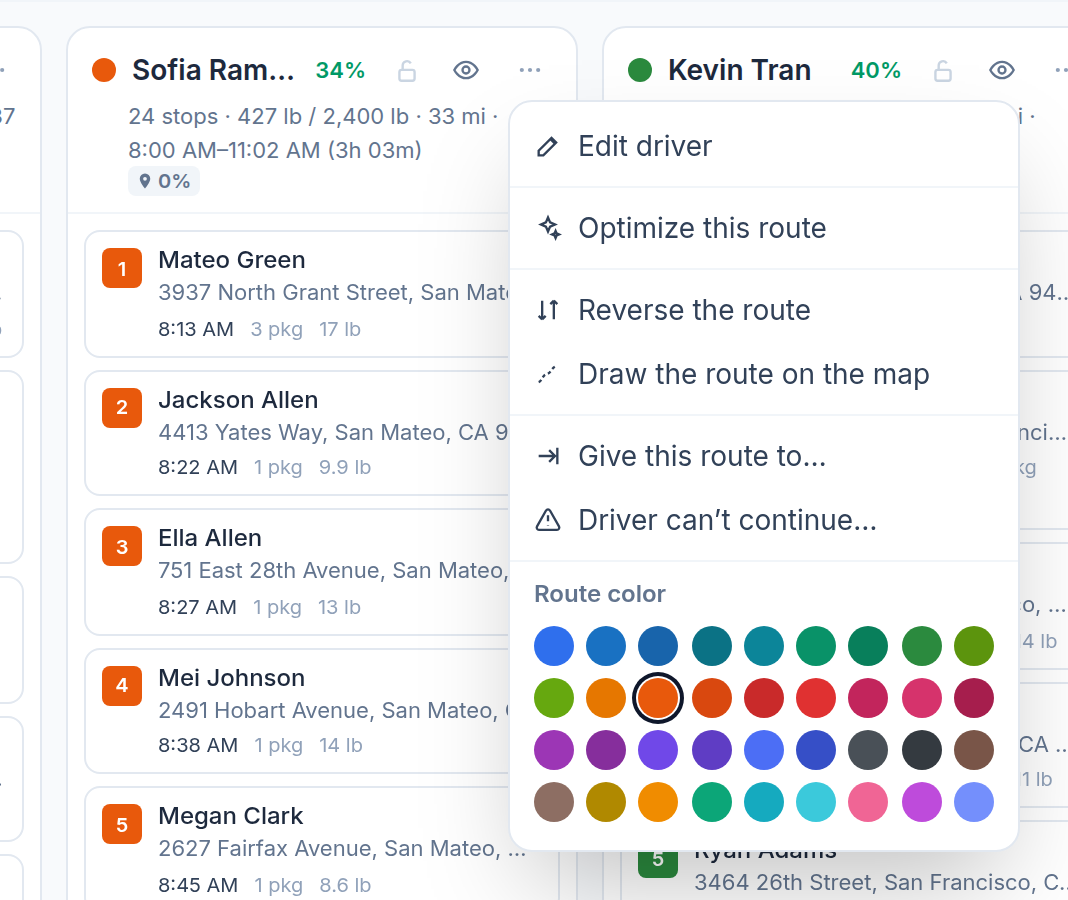
Reverse a route, pick its color
Each route’s ⋯ menu reverses it in one step: stops the driver already started stay first and pickups stay before their deliveries. Pick the route’s color from 36. It is the driver’s color, so the map, timeline, columns, run sheet and the driver’s own route change at once, even after sending.
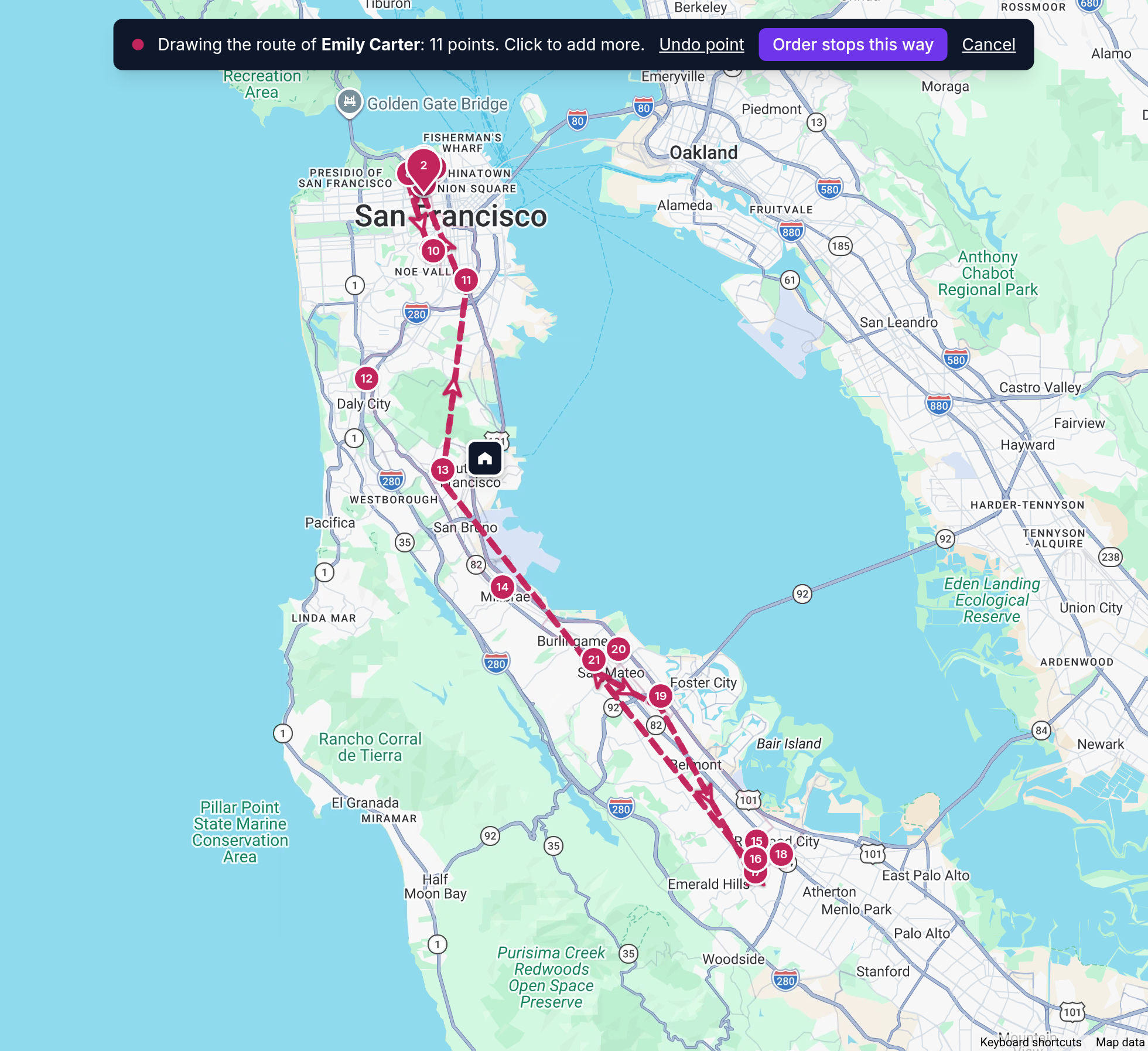
Draw the way you want it driven
Know a better way to drive it? Choose Draw the route on the map in the route’s ⋯ menu and click point after point; a click on a stop snaps to it, and an arrow on each leg shows which way you are drawing. Order stops this way puts the stops in the order your line passes them and works out the times again, and Undo puts the old order back. Stops already done or under way stay first. The driver gets the stops in the new order.
Step-by-step guides
Questions people ask
Frequently asked questions
Do drivers need to install an app?
Drivers can use the Afi Planner Driver app for Android and iPhone (early access), which works offline and shares location in the background, or a text-message link that opens their route in any phone browser.
How often do ETAs update?
Whenever a driver’s phone reports a new position or finishes a stop, at most every few minutes per driver. When a driver starts the day early, ETAs move earlier from then on, but never before a customer’s window opens.
Can dispatchers mark stops done?
Yes, dispatchers can record an outcome for a stop when a driver calls it in.
Can two dispatchers work the same list?
Yes. Needs attention is shared: when someone clicks On it, everyone sees who has the item, and snoozed or resolved items leave the open list for everyone. If two people act on the same item at once, the second one is told who got there first.
What if a driver calls in sick mid-day?
Open their route’s ⋯ menu and choose Driver can’t continue…: one rescue driver takes the parcels from the van, the other drivers share the stops, or the stops move to another day. You see each driver’s extra minutes, late stops and the customers affected before you click Send updates. The rescue driver gets a card telling them whose van to meet and which parcels to take, and your board shows when they have them.
Does the board slow down on a big day?
It stays smooth on days of 2,500 stops. The board only draws the routes and stops on screen, so switching between Timeline, Columns, List and Table, scrolling and dragging stay quick, and the map stays smooth while you pan it.
Can customer service find an order without touching the routes?
Yes. Give them the Customer service role: they start on Orders, find any order of the past 90 days or later by phone, name or order ID and open its story, but they can’t move, hold or re-plan anything.
A customer says the driver never came. How do we check?
Open the order’s story and click Replay the day at this order. The replay opens just before the first report on that order, with the driver’s van on the map and only that order’s events: when the driver was on the way, arrived and reported the delivery or the failure, and how far from the address. Customer service can open it too, and nothing can be changed from a replay.
How long are driver locations kept?
The driver app shares location only while the driver works today’s route. Every GPS point for 7 days, then a simplified track for 90 days, which is what Replay shows after the first week. A summary of each route (miles and time driven) is kept for analytics. A day older than 90 days still replays its events, without the vans.
More features
- Route optimizationOptimized routes that respect how your day really worksLearn more
- Driver appA driver app built for the curb, not the officeLearn more
- Customer trackingFewer “where’s my order?” callsLearn more
- AnalyticsSee how every route really wentLearn more
- Driver pay & timesheetsDriver pay worked out from the routes they droveLearn more
- Integrations & APIConnect your systems in both directionsLearn more
- Import & addressesFrom spreadsheet to map in secondsLearn more
Plan tomorrow’s routes in the next 3 minutes
Start your free 3-month trial. No credit card, no setup call, no installation.