A driver app built for the curb, not the office
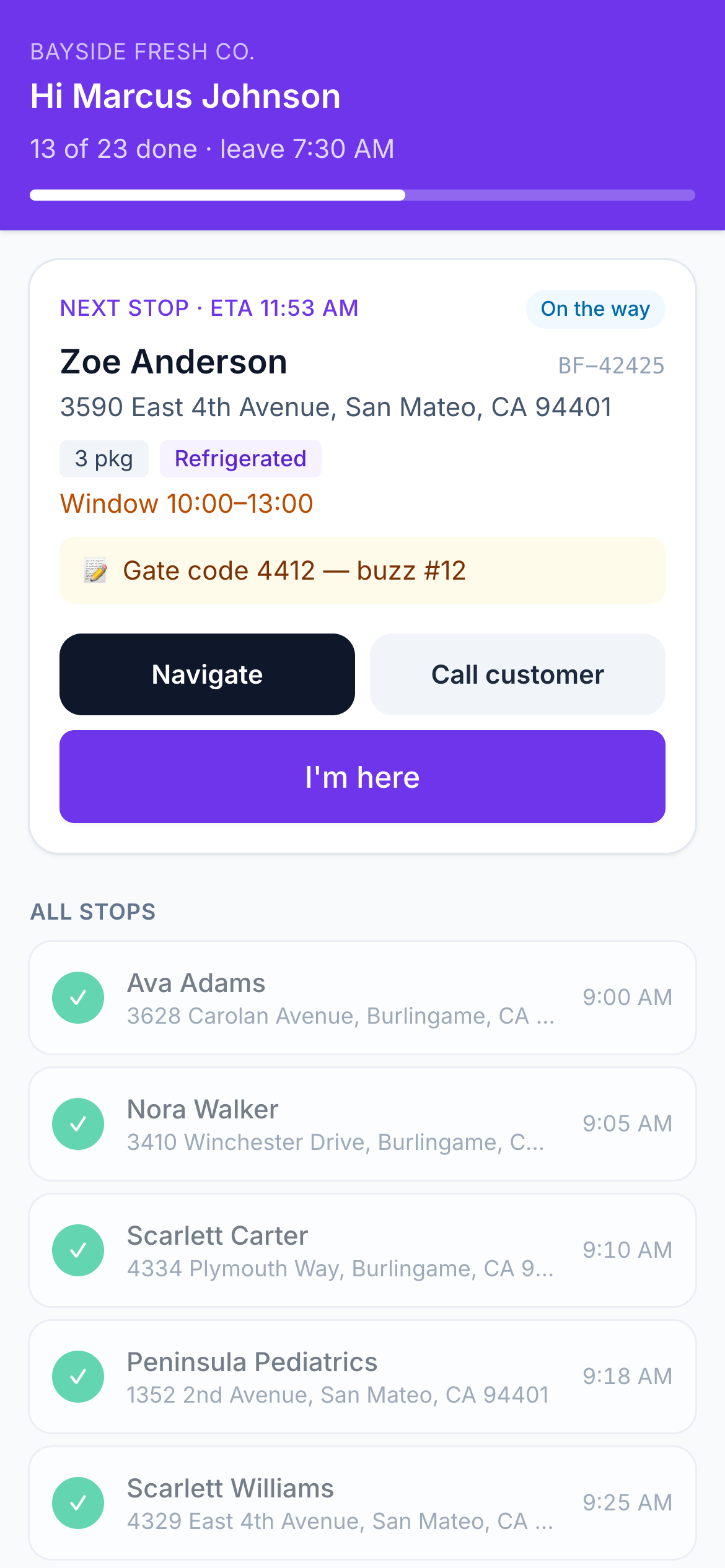
Drivers see one thing first: the next stop. Big buttons, swipe to confirm, and everything works offline. Proof of delivery takes seconds and arrives in the dashboard as soon as the phone has signal.
Learn it in a minute
Next stop, navigate, “I’m here”, delivered. That’s the whole flow, in English, Spanish, Vietnamese or Swedish.
Proof that settles disputes
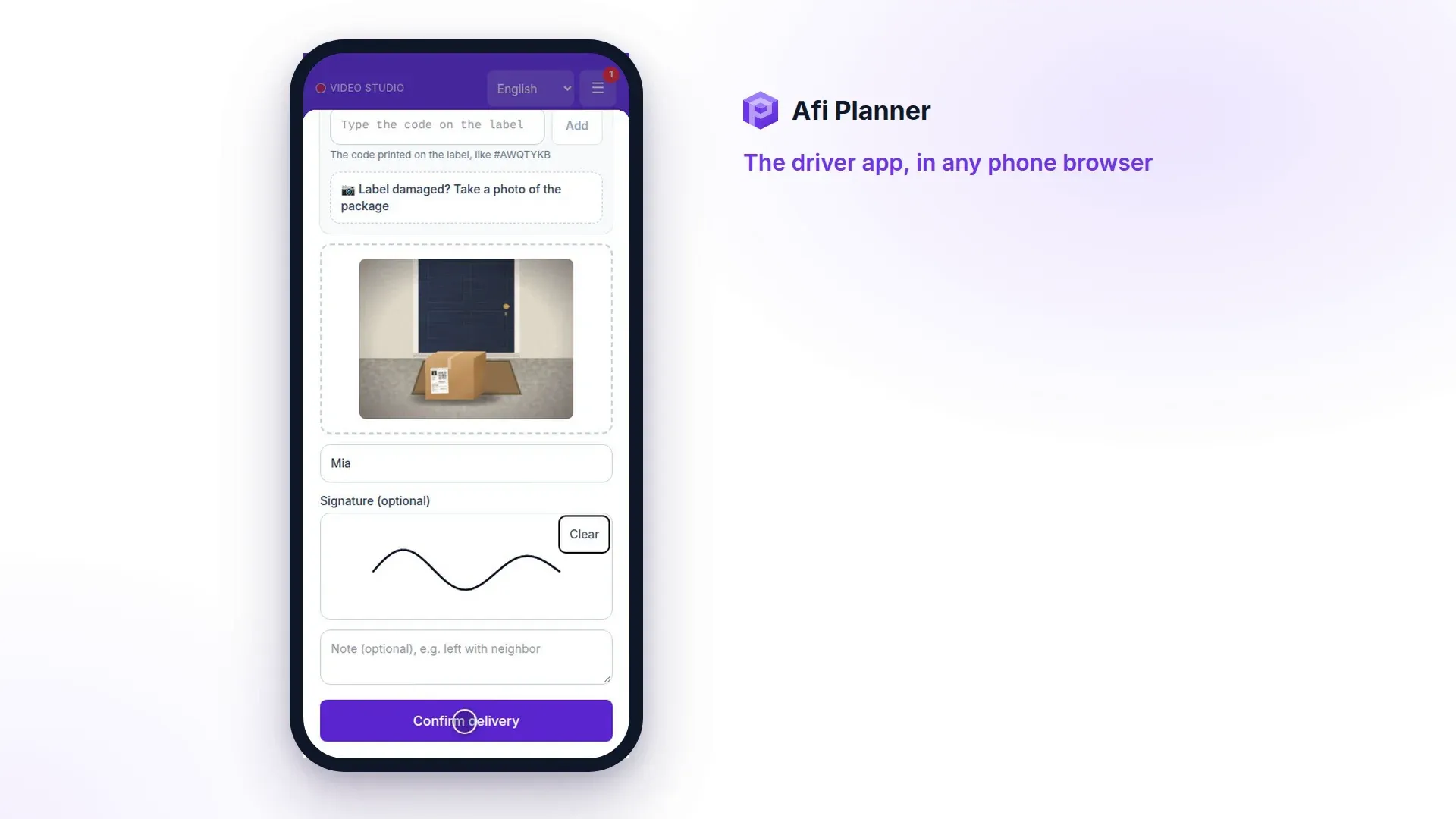
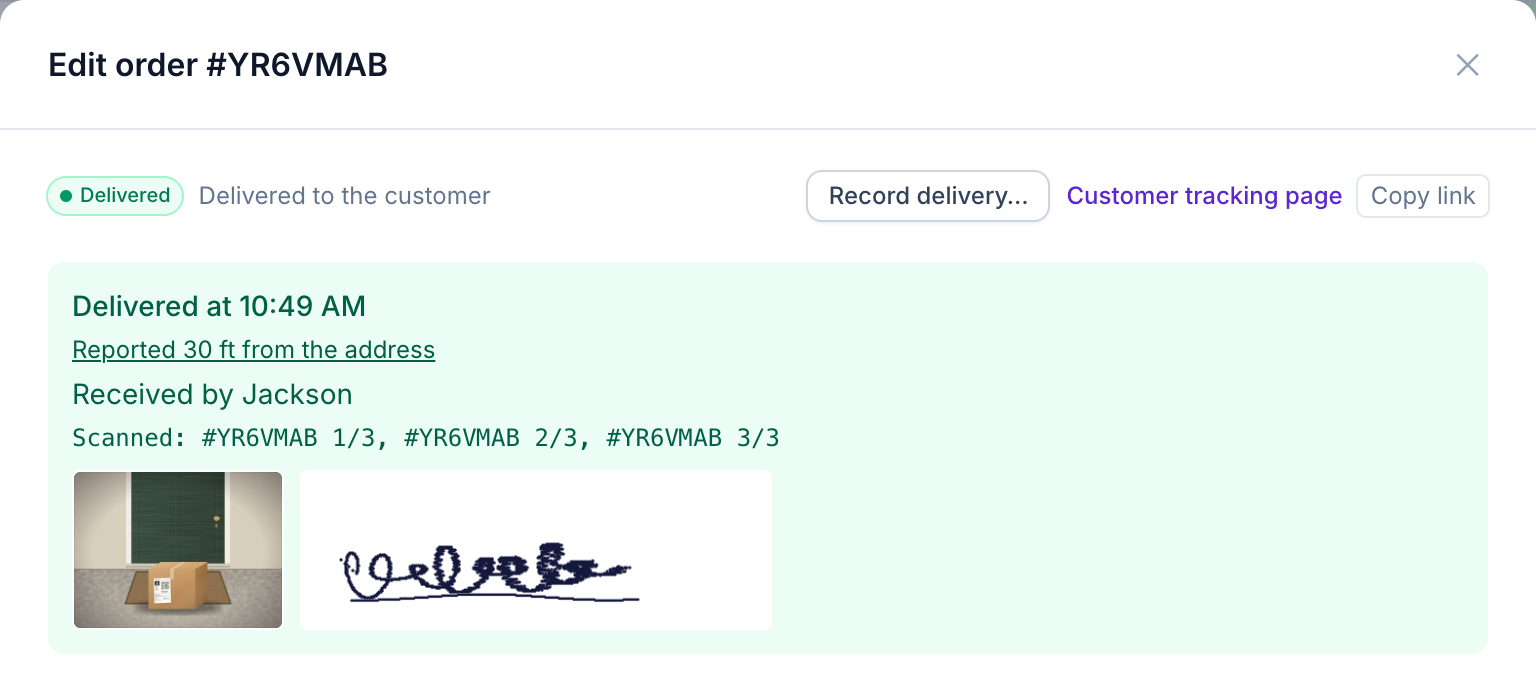
Photos from the camera, signatures, recipient name and package scans, with the time and GPS position in each delivery report.
Works with no signal
Routes are cached on the phone and every report is queued and sent in order when the connection comes back. A report that arrives late never overwrites a newer decision by your dispatcher: it stays in the order’s history and shows in Needs attention.
Navigation they already use
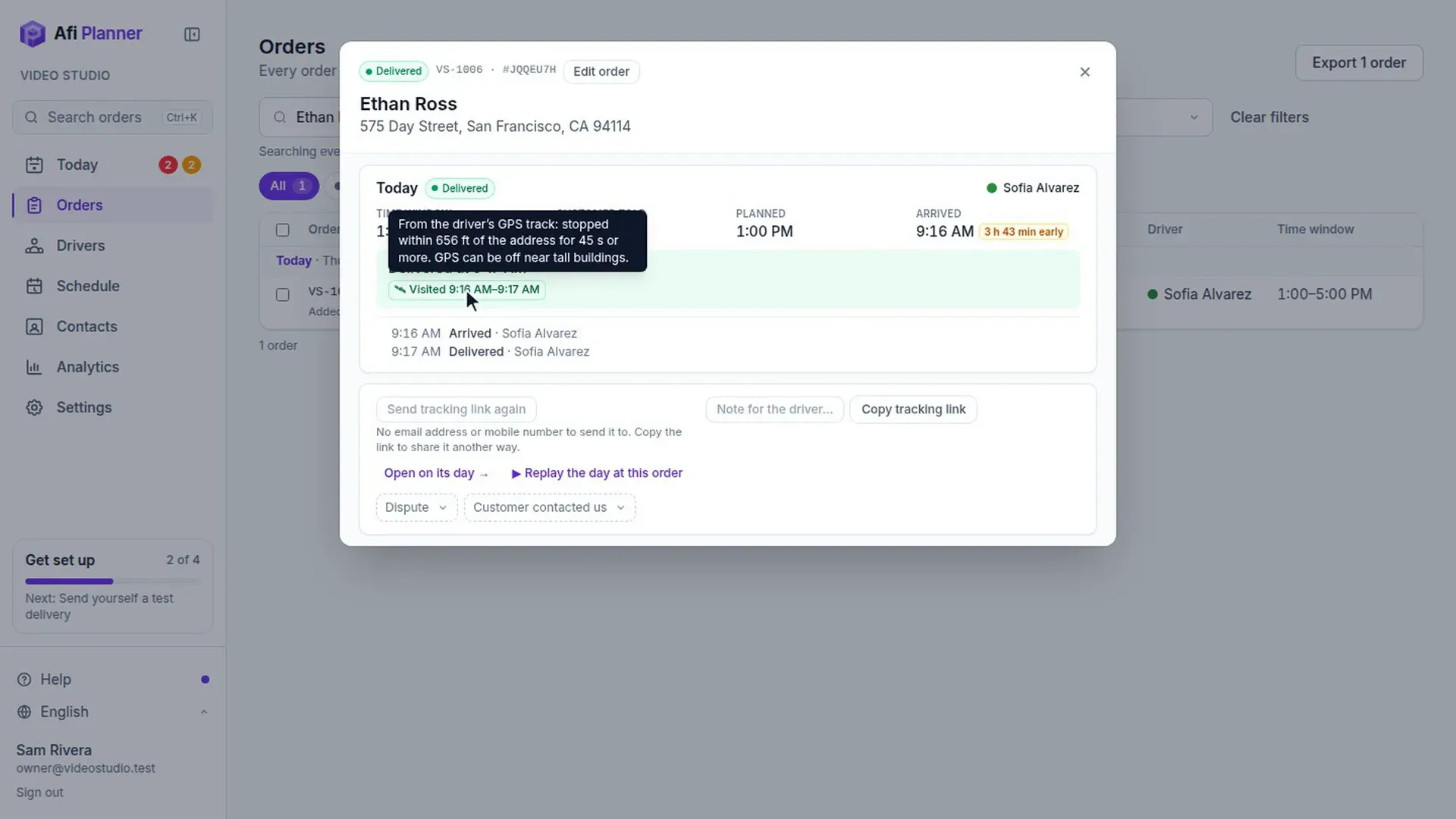
Navigate opens Google Maps, Waze or Apple Maps with the exact pin, and the app keeps sharing location in the background while the driver follows directions.
Location only while they work
The app shares a driver’s location for today’s route only. Sharing starts when the driver taps Start my day or Navigate, or on its own once the app is open in the hour before the route (a reminder asks them to open it). It stops after the last stop or when they tap End my day, and a phone that sits still long after the shift stops sharing and asks “Still working?”. Your board shows “Not started” and “Day ended”, so an off-duty driver never looks like a problem. When the dispatcher hands the route over to another driver, the app says so and stops sharing location.
Pick up at the depot first
An order sent to the van after it left is still at the depot. The app shows a “Pick up at the depot first” card listing it, and the driver taps “I have it” once it’s loaded, and your board shows it in the van. A rescue driver who already left the depot gets a “Pick up at the depot” stop on their route instead, timed with the drive back.
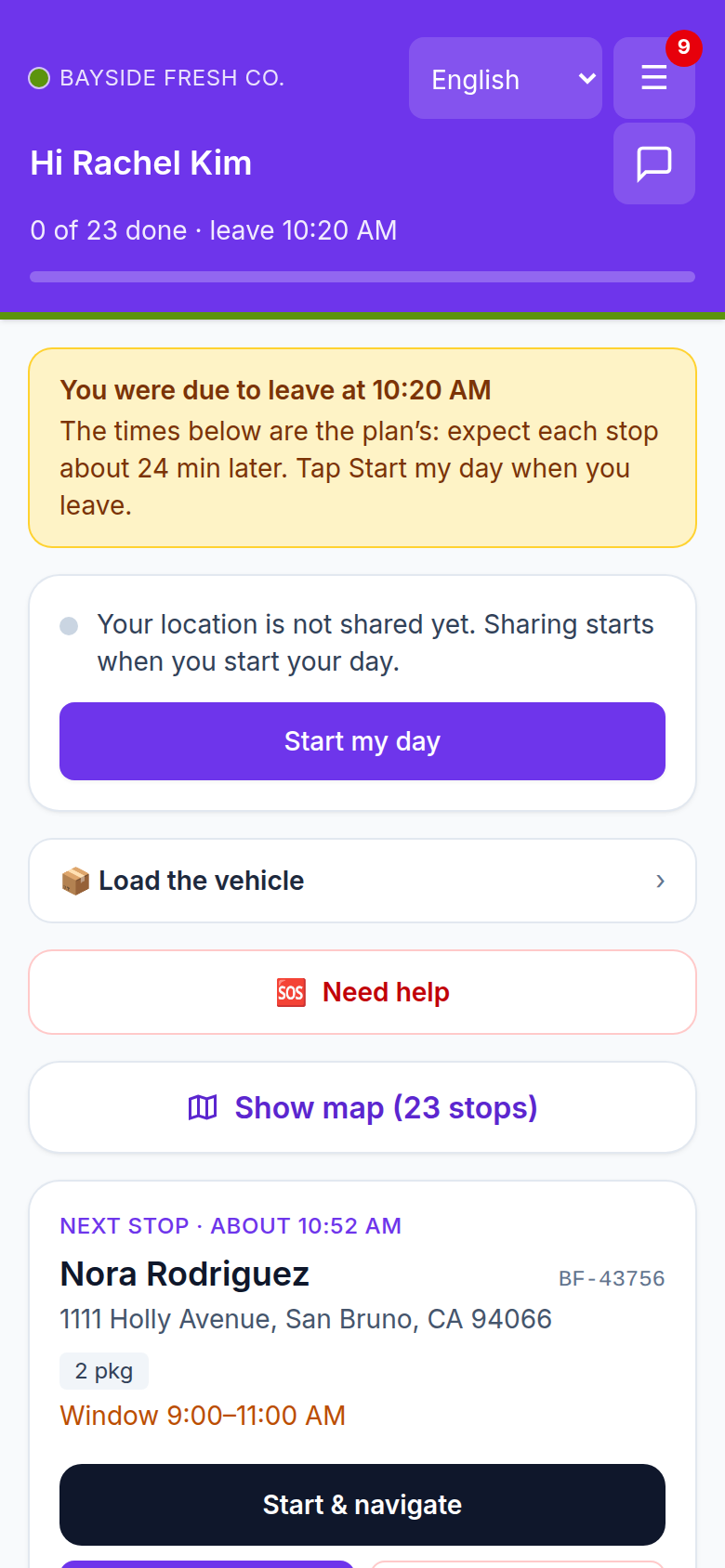
Running late before the first stop
A driver who hasn’t tapped Start my day 10 minutes after their planned start sees it at the top of their route, in the app and on the route link: “You were due to leave at 10:20 AM”, with how much later each stop will be. The next stop’s time moves by the same delay (“about 10:52 AM”), so they know what to tell a customer who calls.
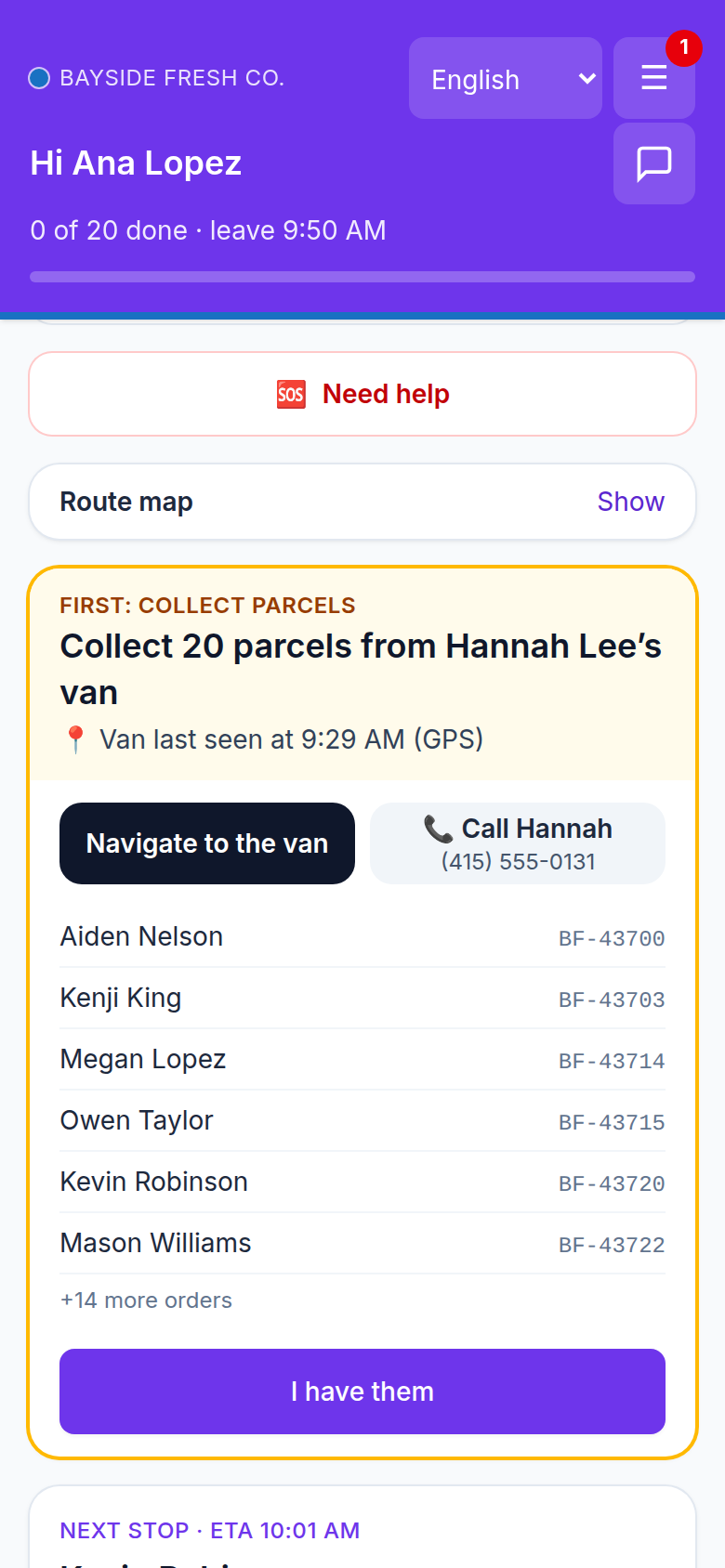
Collect parcels from another van
When a van breaks down or a driver can’t go on, the driver sent to take over sees one card at the top of their route: “Collect 20 parcels from Hannah Lee’s van”. It shows where that van was last seen, with directions, a button to call the other driver and the orders to take. They tap I have them once the parcels are in their van, even with no signal. The driver handing over sees who is coming for which parcels.
- Shared over several drivers, each one sees only their own parcels
- Your board shows “Collect 20 from Hannah” in amber, then “Collected” with the time in green
- Not collected 30 minutes after they were due at the van, it comes up in Needs attention
Load the van, then check it
Turn on the van loading check in Settings and drivers see “Load the vehicle” before they start: last stop first, so the first stop ends up nearest the door. They scan each package label with the phone camera, or tick the stops on a list if you prefer. Your board shows each van’s count (“Loaded 38/40”), and the order’s story and the tracking page show when it went in the van.
- Off, optional or required; when required, drivers finish loading, or say what is missing, before Start my day
- A package of another driver’s route is caught at once: “Wrong van. This package belongs to Chris’s route. Keep it aside.”, and the dispatcher sees it too
- Scans are read against your own barcodes when orders carry them (import, the order form or the API), or Afi Planner’s labels
- A damaged label can be marked “Loaded without scanning”
- A van that leaves without stops or without a required check shows in Needs attention
When the customer changes the instructions
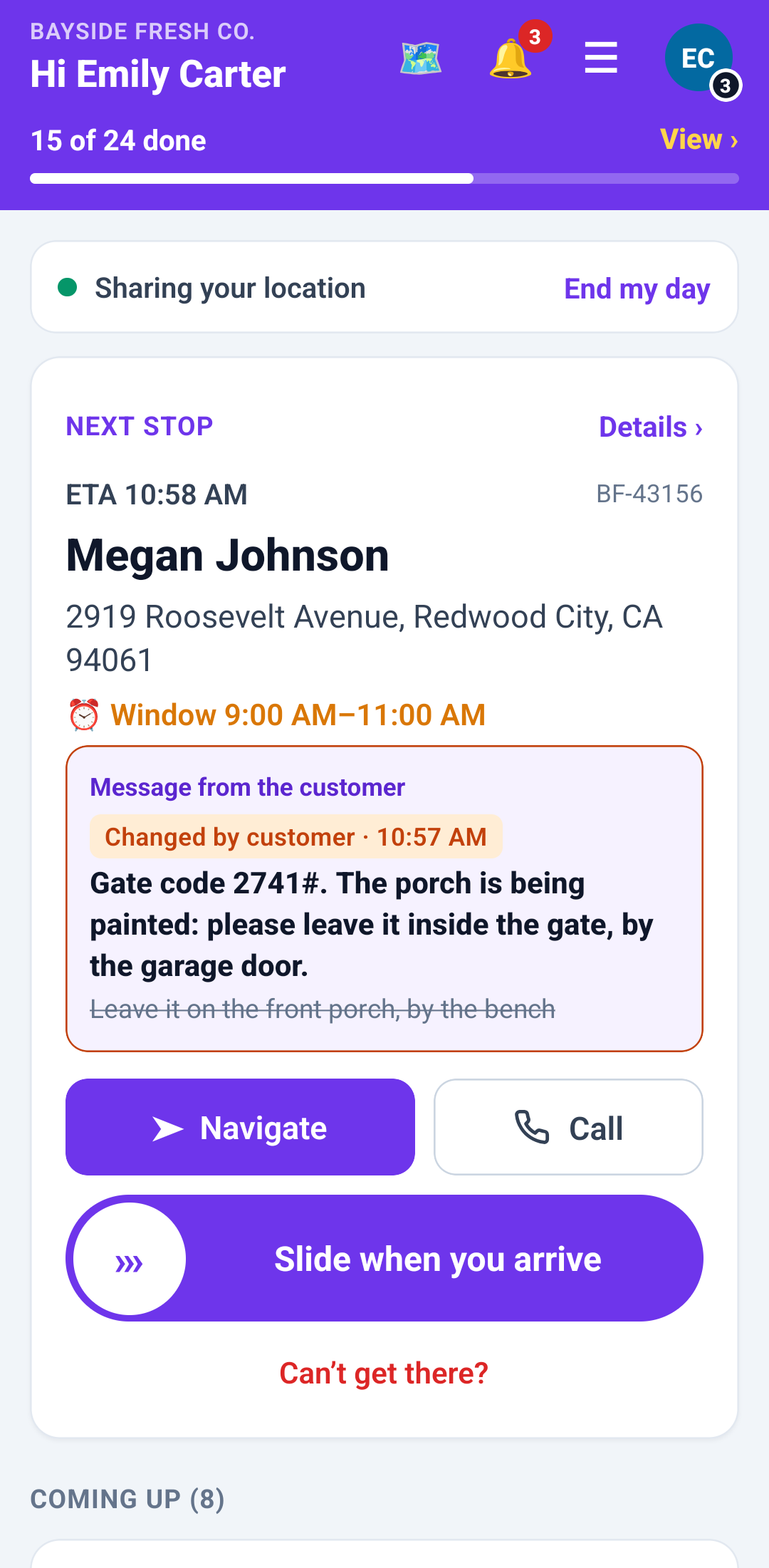
Customers can change their delivery instructions on the tracking page until the driver is on the way to them. The driver gets a notification, and the stop shows “Changed by customer” with the time, the new instructions in bold and the old ones struck through, so nobody follows a gate code that no longer works. Dispatchers see the same on the stop’s card. Notes, instructions, access info and messages from dispatch can be selected, so the phone’s own Copy and Translate work on them.
A canceled order says so
When dispatch cancels an order the driver has, the driver gets a notice and the stop reads “Order canceled — don’t deliver it”, with “Bring the parcel back to the depot” when it is already in the van. It moves to the Done list as canceled, never as a skip of theirs, and it can’t be delivered by mistake. The route link in the browser says the same.
Call dispatch in one tap
Add your dispatch phone in Settings, with an after-hours number if you have one. “Call dispatch” then sits in the app’s route header, on the problem screen and in every message that tells the driver to call you, and the route page in the browser has it too. After hours it dials the after-hours number. Customers never see this number.
Proof of delivery your way
Choose what each delivery needs in Settings: photo, signature, recipient name or barcode scan, each off, optional or required. Set your own failure reasons and require a photo for the ones that matter.
- Camera-only photos (no gallery uploads)
- Arrival marked automatically near the address
- Undo right after a report, and a Done today list to take a report back for 10 minutes
- Warning when a report is made far from the address
- “Leave it at the door” never overrides a signature you require; left at the door means no signature and a required photo of where it was left
- Share a proof-of-delivery page from the order’s story: photos, signature, time and place, nothing about other orders; revoke it any time
Several orders at one address, one stop
When orders that follow each other on the route go to the same address, the app shows them as one stop: one row in the list, all marked arrived together, and one Deliver screen with one scan list, one photo for every order and one slide. Apartments in the same building still sign apart, with a name and signature per unit. Each order keeps its own delivery report, and Undo takes the whole stop back.
- Untick an order to deliver it on its own later
- Problem reports one order failed on its own
- Pickups at one place in a row work the same way: one Pick up screen with every order ticked, a scan for each order when you require scans, and one slide
Signed in once, ready every day
Send a sign-in link by SMS, show a QR code once, or give the driver a username and password from Drivers → Driver app sign-in. After that, the app finds each day’s route on its own and notifies the driver when it’s ready or when it changes. Once drivers choose their own password, a forwarded link is not enough: it asks for that password, with the username already filled in.
- Check my phone, in the app’s menu: location on and allowed all the time, precise location, notifications and, on Android, the battery setting, each with the steps to fix it
- A practice route of five made-up stops that never leaves the phone: navigate, photo, signature, a problem, skip for now, undo, and a trainer who plays the customer on the last stop. No customer gets a message, and nothing shows on your board or in reports
- “Working tomorrow?” the evening before: drivers confirm tomorrow’s hours or say they can’t come, and the answers show on your Schedule
A route link that works on a computer too
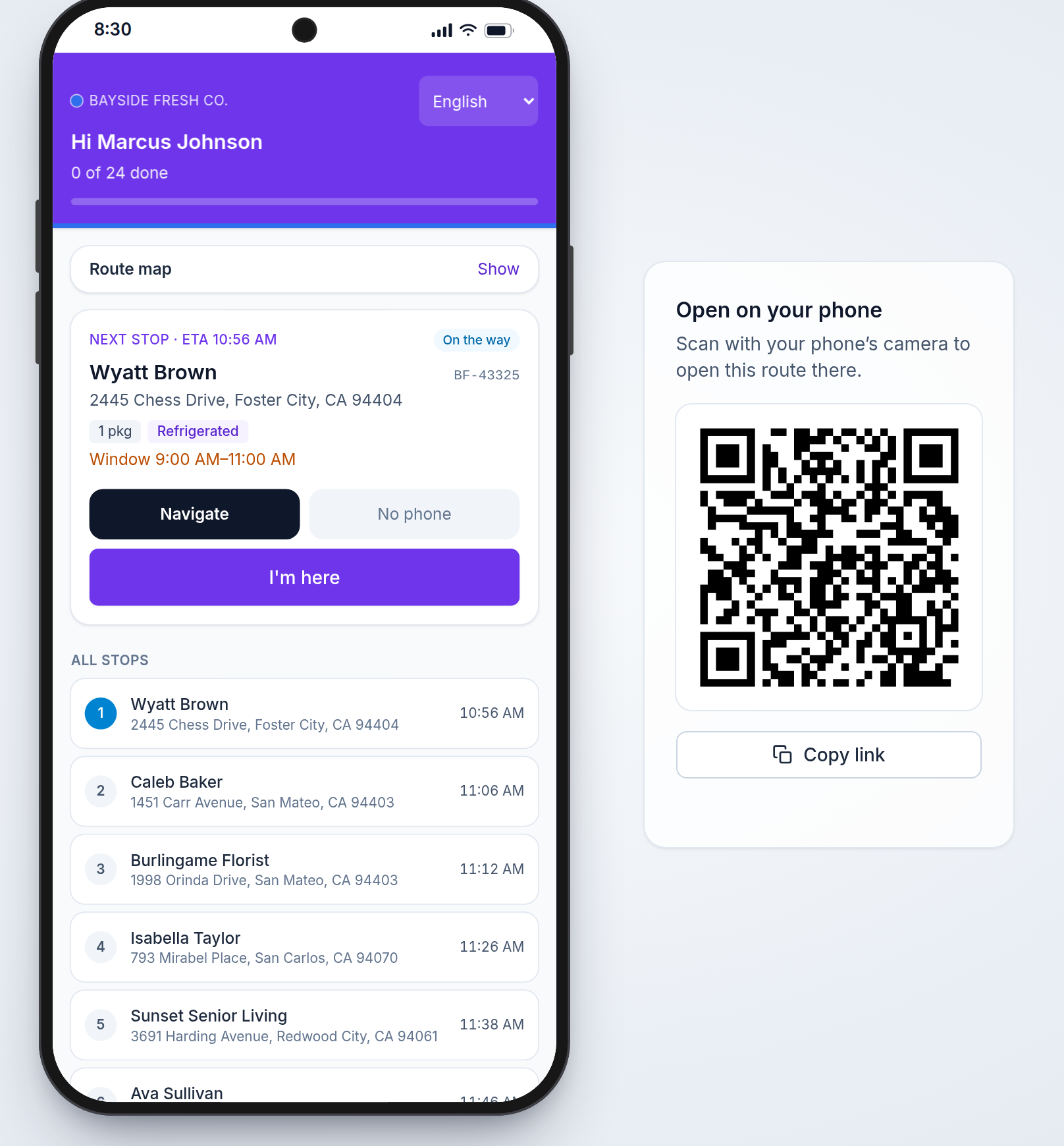
Drivers without the app open their route from the text-message link in any phone browser. With no signal, the page still opens the route as last saved on the phone and keeps the driver’s reports until the connection is back; any report your dispatcher changed or refused meanwhile is then listed, with the stop, the driver’s time and why. Open the same link on a computer and the route shows inside a phone, exactly as the driver sees it, with a QR code beside it: scan it with a phone’s camera to take the route along, or copy the link.
Several accounts on one phone
Drivers who work for two companies, or two drivers who share a phone, keep one account each on the same phone and switch the way you switch accounts in a mail app: tap the avatar at the top right and pick one. Each account keeps its own routes, history, performance and notifications.
- Each account shows its company and today’s state: route today, next route, or no route yet
- A notification opens the account it was sent to
- Sign out of one account and the others stay
- Location keeps sharing for the route being driven while the driver looks at another account
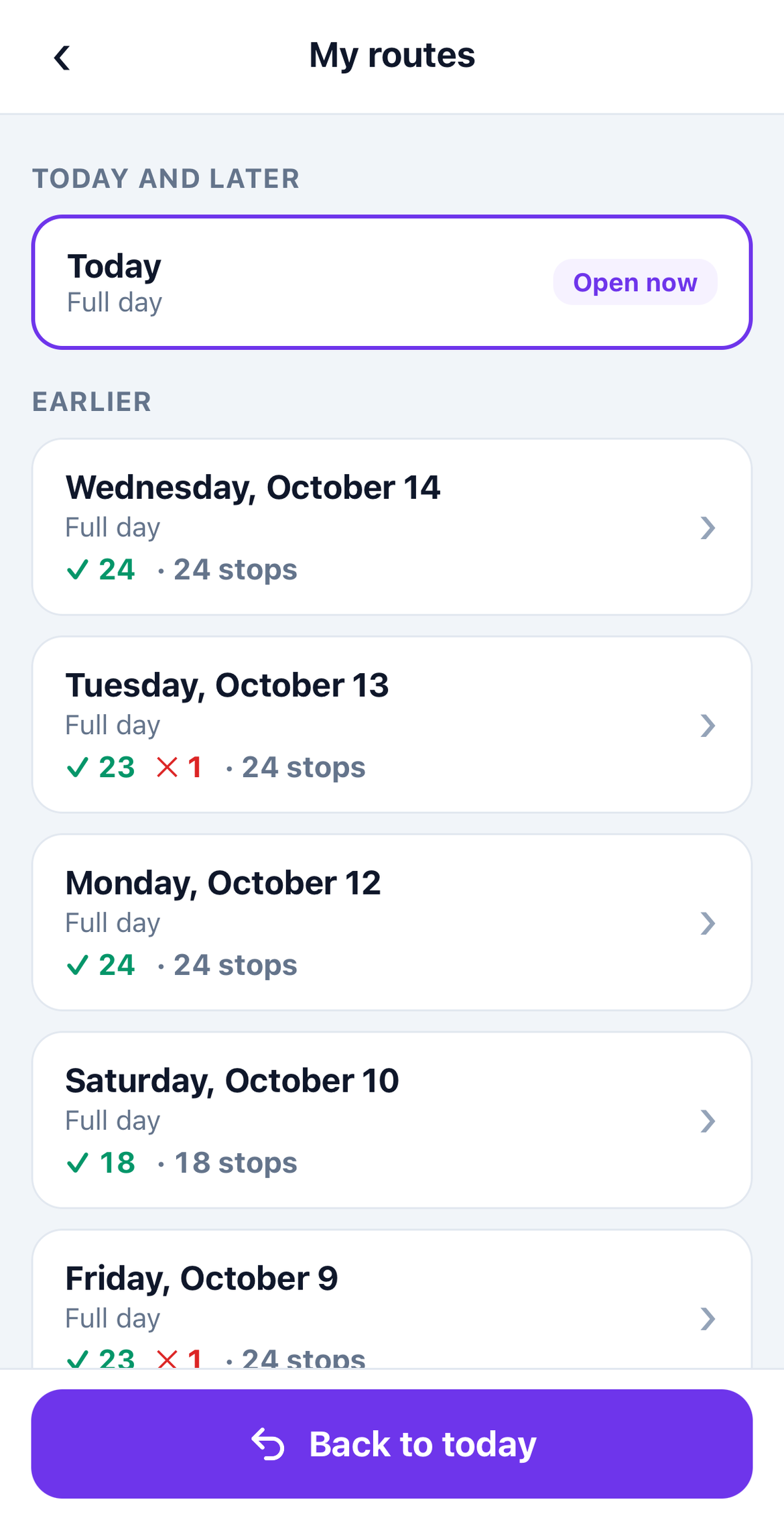
My routes: look back at any day
Signed-in drivers can open their earlier routes, read-only: every stop’s outcome and time, the reason and note, who received it, the photos and the signature. A big “Back to today” button is always at the bottom.
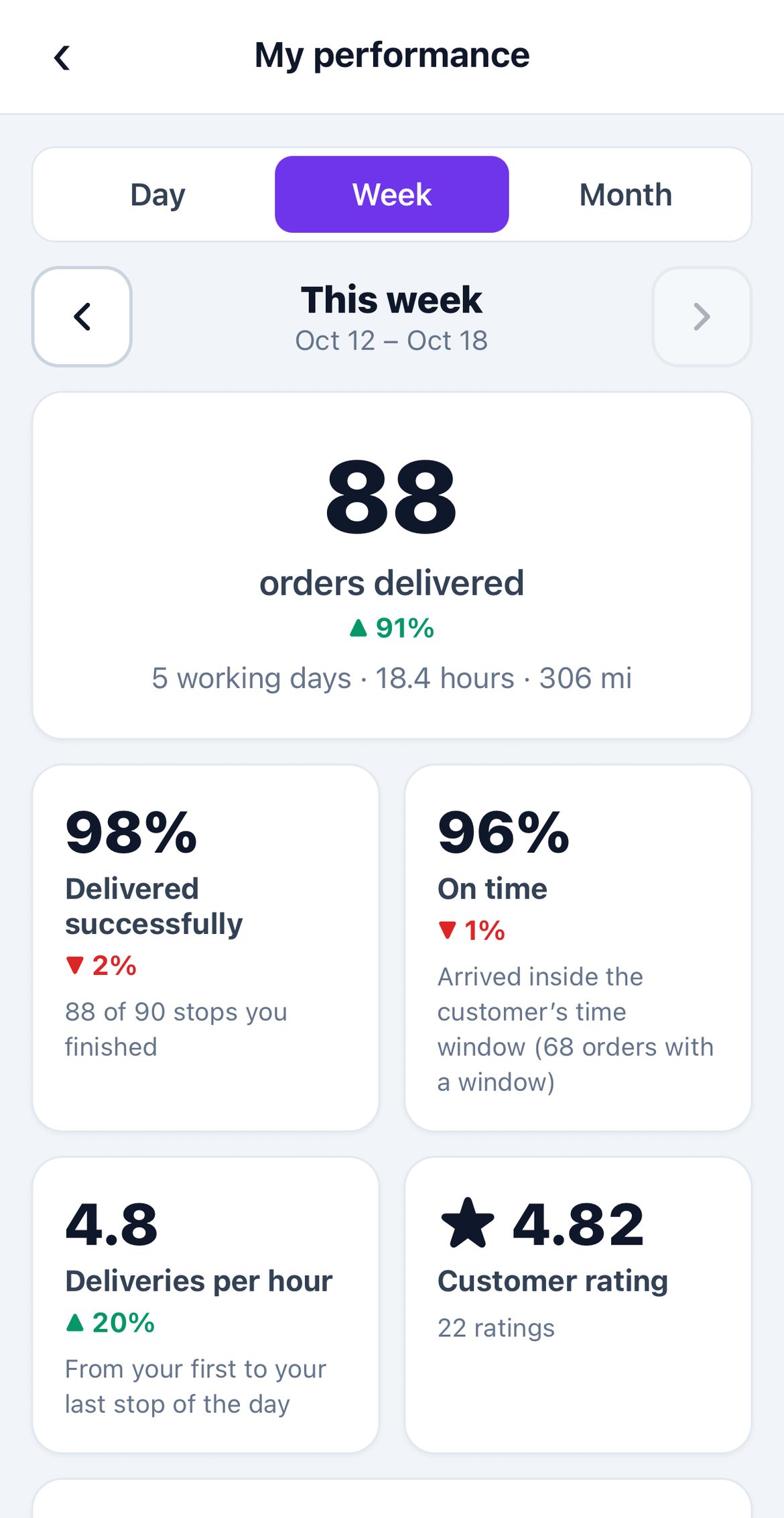
My performance by day, week or month
Drivers see their own numbers for a day, a week (Monday to Sunday) or a month, step back with the arrows, and see weeks and months compared with the one before: deliveries, success rate, time windows kept, deliveries per hour, customer rating and how closely they followed the planned order.
Questions people ask
Frequently asked questions
Which phones are supported?
Android and iPhone, in early access. Drivers without the app get a text-message link that opens their route in any phone browser.
Can a driver work for two companies?
Yes. Each company signs the driver in with its own link, QR code or username, and both accounts live on the same phone. Routes, history and notifications stay with the company they belong to.
Can drivers see their own performance?
Yes. My performance in the app shows their deliveries, on-time rate, customer rating and how closely they followed the planned order, by day, week or month, with ETA accuracy and more under Advanced.
Does the app track drivers after work?
No. It shares location only while the driver works on today’s route, never for another day’s route, and it stops after the last stop or End my day. Dispatchers see “Not started” or “Day ended” instead of a position.
Which languages does the app speak?
English, Spanish, Vietnamese and Swedish. Set your drivers’ language in Settings; each driver can still pick their own in the app. The route page in the browser speaks the same four.
More features
- Route optimizationOptimized routes that respect how your day really worksLearn more
- Dispatch & live trackingKnow what needs you before your phone ringsLearn more
- Customer trackingFewer “where’s my order?” callsLearn more
- AnalyticsSee how every route really wentLearn more
- Driver pay & timesheetsDriver pay worked out from the routes they droveLearn more
- Integrations & APIConnect your systems in both directionsLearn more
- Import & addressesFrom spreadsheet to map in secondsLearn more
Plan tomorrow’s routes in the next 3 minutes
Start your free 3-month trial. No credit card, no setup call, no installation.