Find and fix orders: search, move, hold and export across days
9 steps4 min read
The day page is for the routes of one day. Orders is for everything else: the order a customer calls about, yesterday’s failures nobody sent again, the twelve orders of a store that asked to wait.
In this guide
Step 1: Open Orders
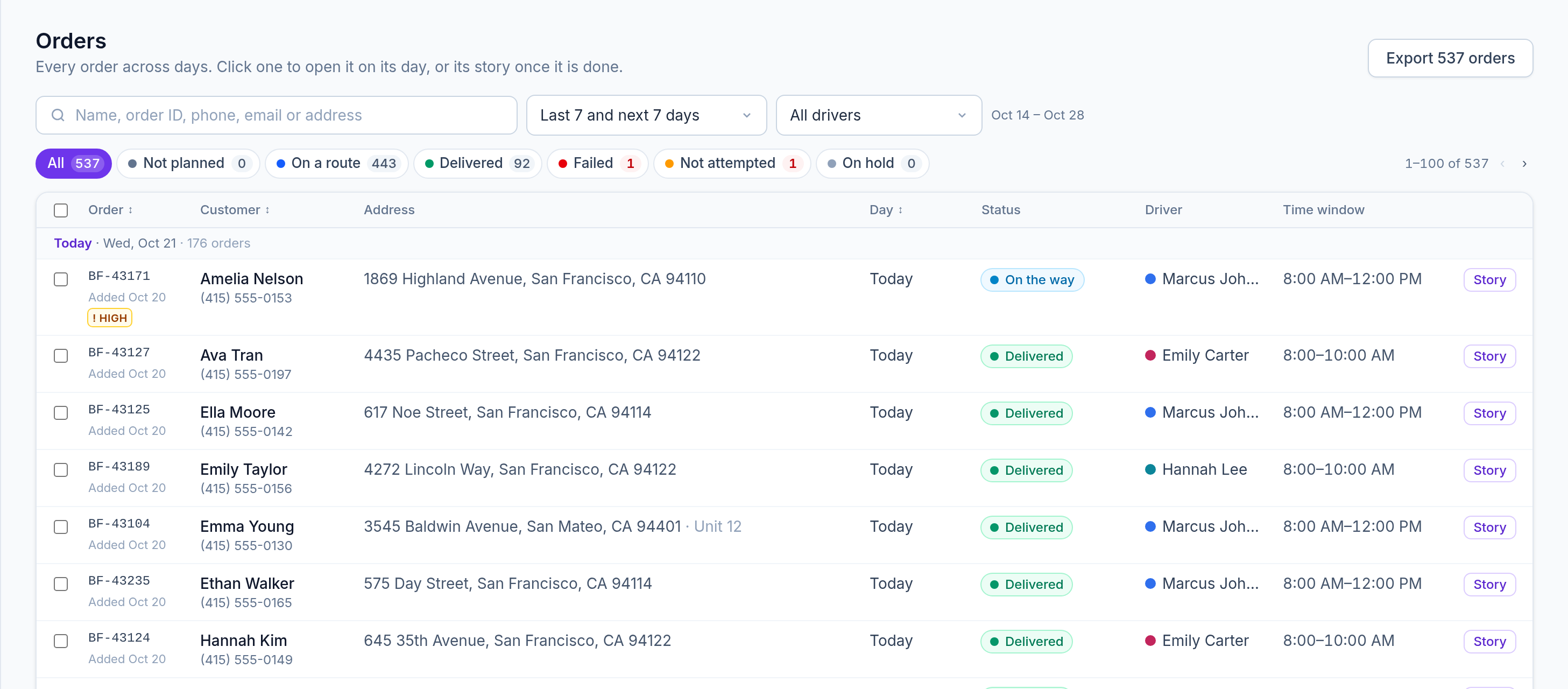
Click Orders in the sidebar. You see the last 7 and next 7 days, today and the days ahead first, then the days that are over, each day under its own header with its number of orders.
Step 2: Filter by what an order needs
The chips count the orders by what they need: Not planned, On a route, Delivered, Failed, Not attempted, On hold and Cancelled. Pick another range (Today, Tomorrow, Yesterday, This week, Next 7 days, Last 7 days or your own dates) or one driver. Failed orders show the driver’s reason and note under their status. Clear filters takes you back to the start.
Step 3: Search any order
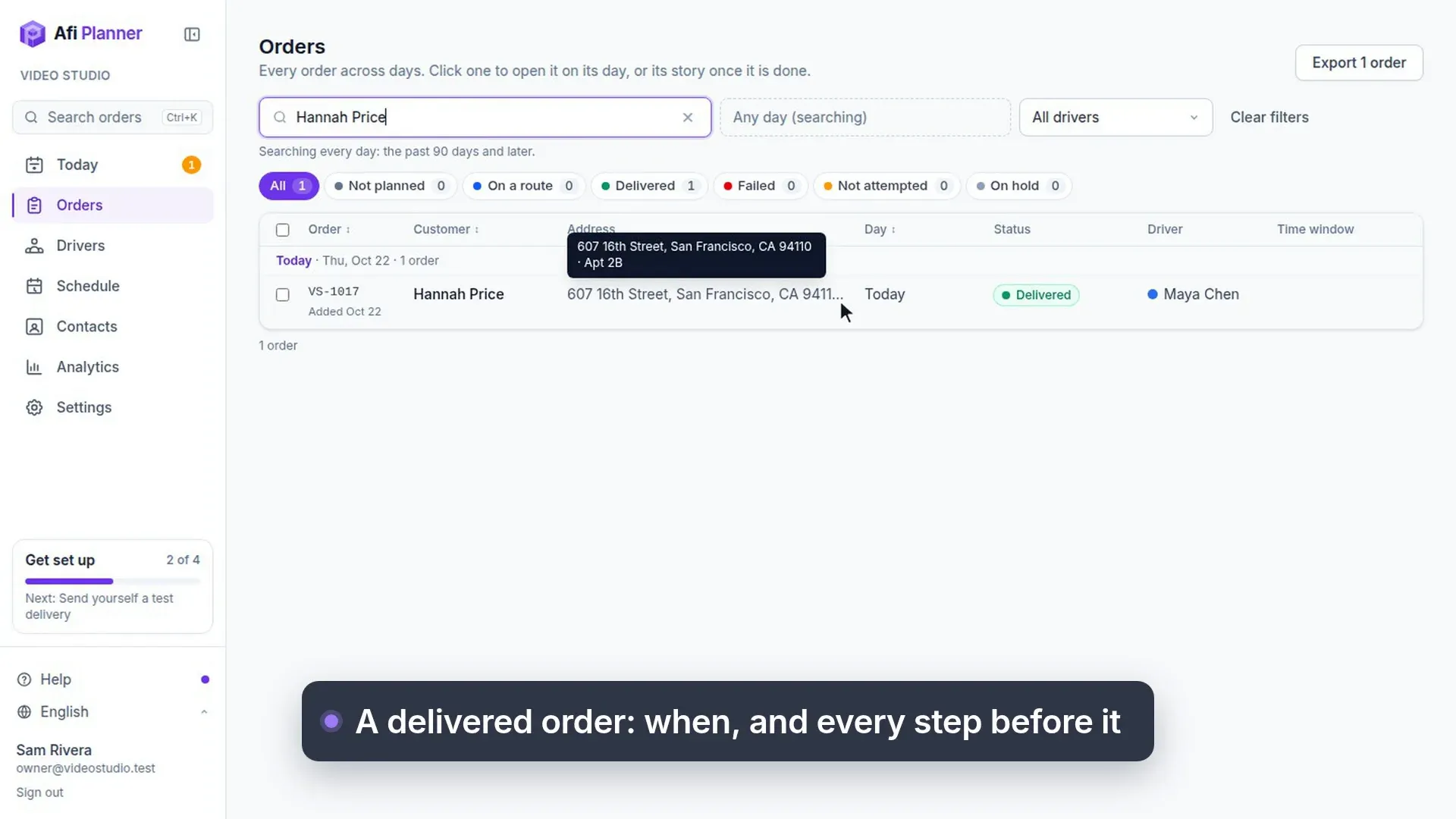
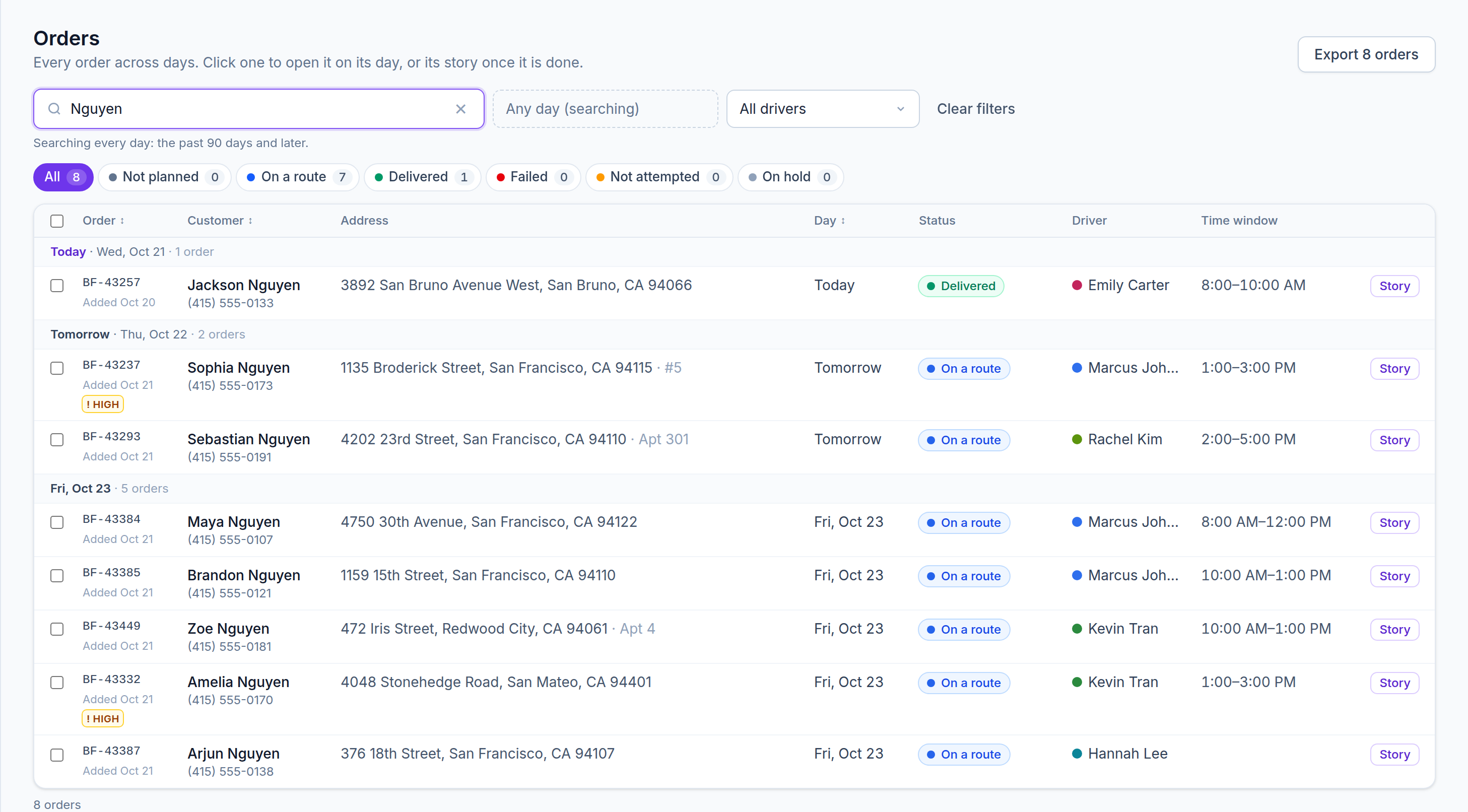
Type a name, order ID, phone number in any format, email or part of the address. A search looks at every day, the past 90 days and later, and the orders it finds stay grouped by day. Press Enter to open the first one.
Tip: Press / anywhere on the page to jump to the search box.
Step 4: Open an order
Click a row. An order still open today or later opens on its day with the stop selected, ready to edit; a finished order or one from a day that is over opens its story: every attempt, message and proof. The Story button opens the story of any row. Back brings you to the same filtered list.
Step 5: Move orders to another day
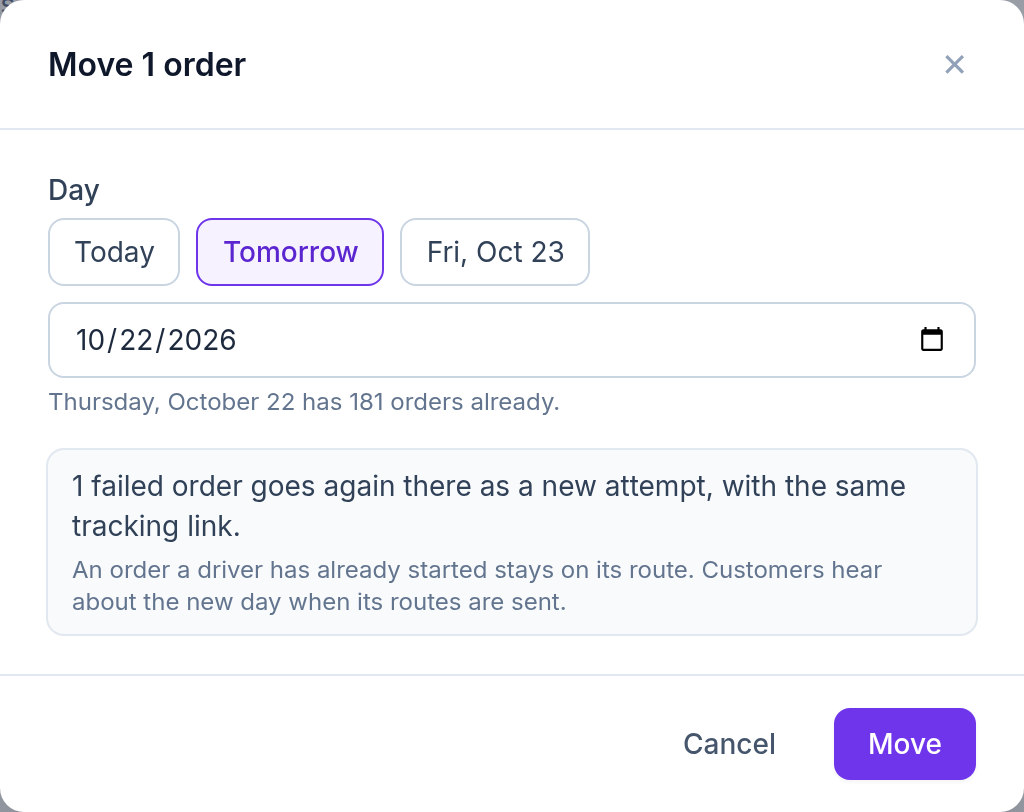
Tick the orders, or tick the whole page and choose Tick all matching orders, then click Move to another day… and pick Today, Tomorrow or any later date: the dialog says how many orders that day has already and, before anything changes, what happens: open orders move, failed ones go again as a new attempt with the same tracking link, delivered ones stay. Click Move.
Tip: If some of them were on routes already sent, a notice lists those days with a link: the drivers keep the old route until you click Send updates there.
Step 6: Hold, release and export
Put on hold keeps ticked orders out of planning until you release them; Undo is right there if you clicked too fast. Export downloads the ticked orders, or every order that matches the filters, to Excel: day, order ID, customer, phone, email, address, status, driver, time window, attempts and why it failed.
Step 7: Call back low ratings
When customers gave 1 or 2 stars in the last 14 days, Follow-ups shows at the top with how many. Click it to see them with their reasons and a Call button, then click On it, Snooze or Resolve, as in Needs attention.
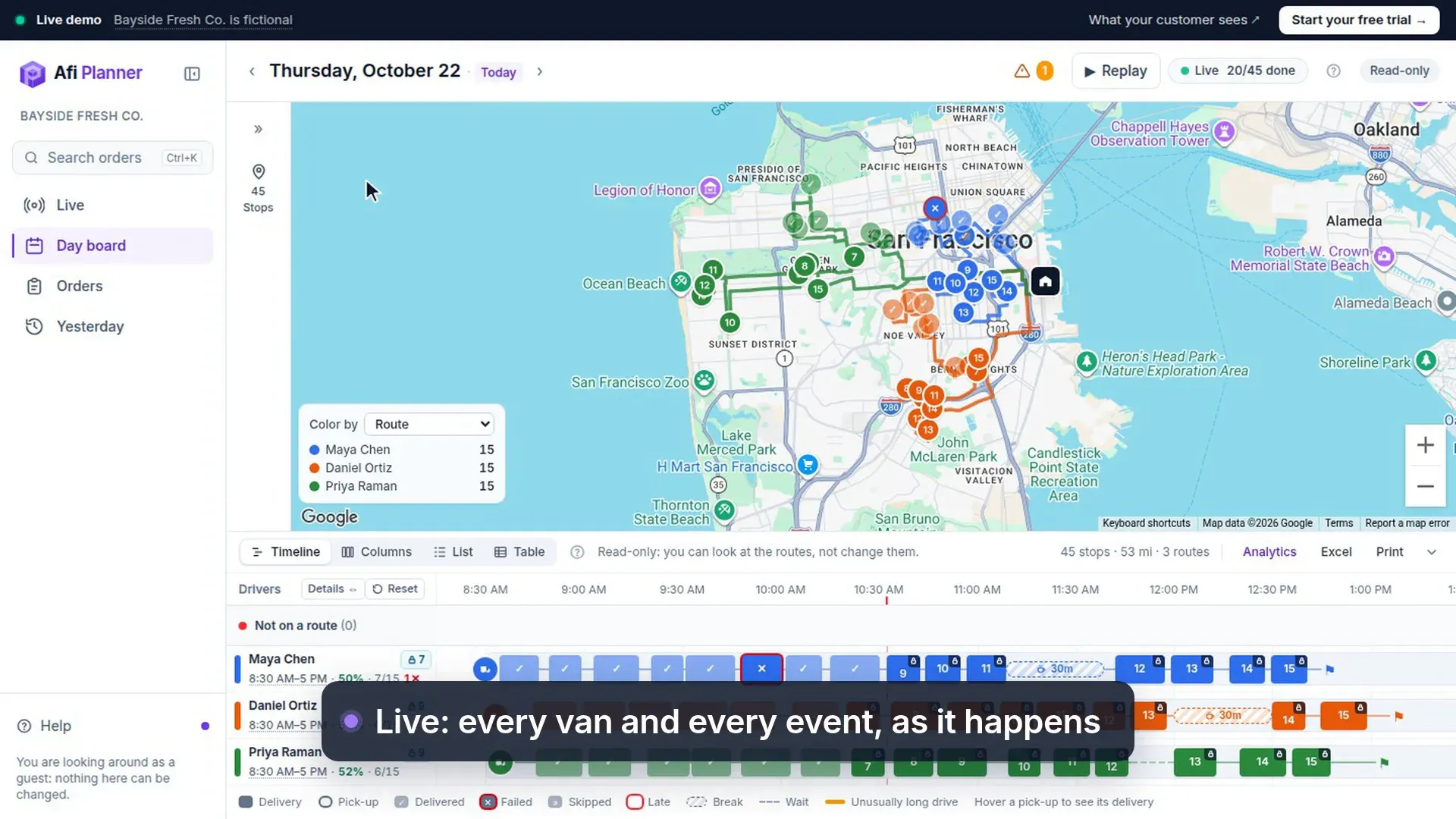
Needs attention and Live · 47 s, no sound Step 8: Edit several orders at once
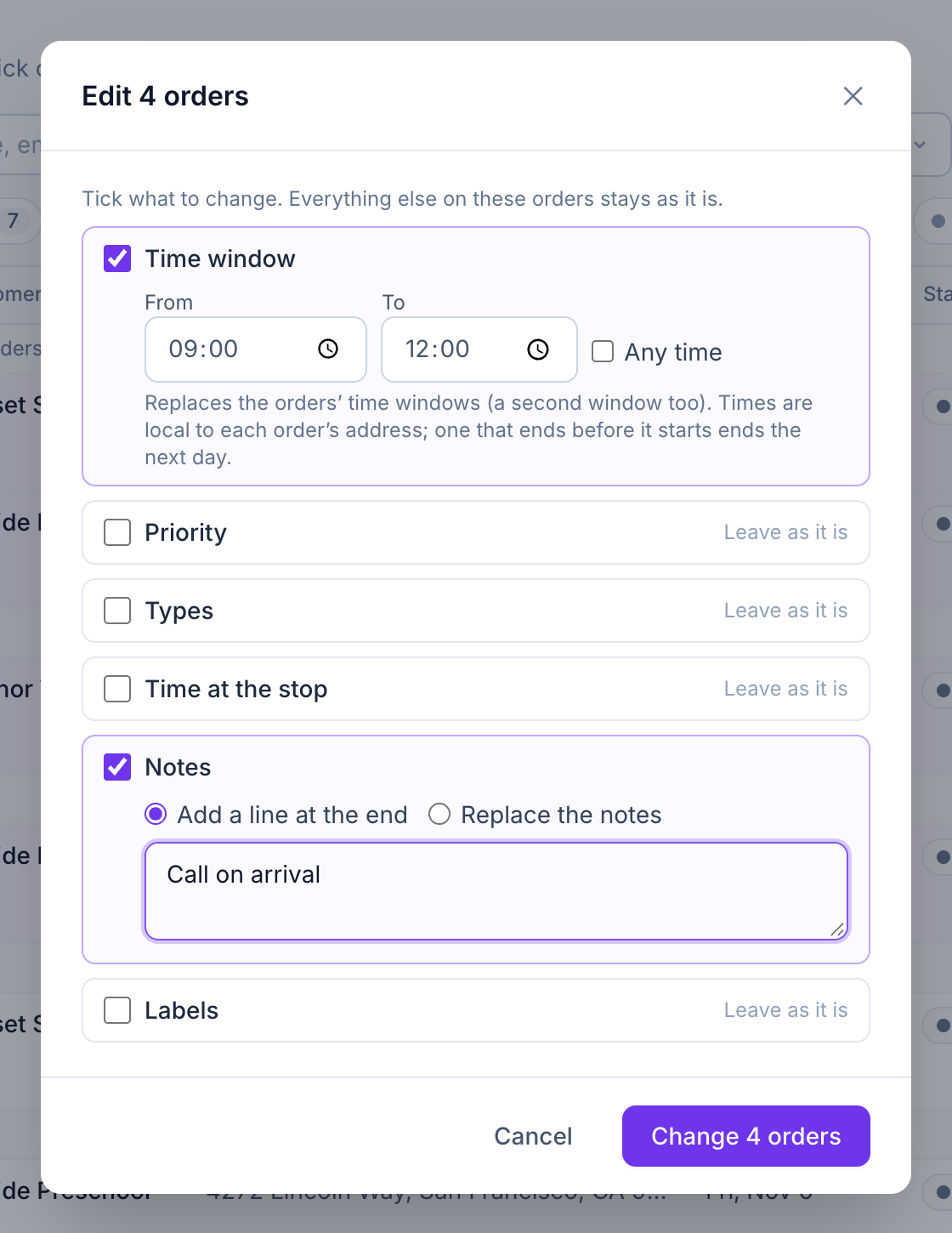
Tick the orders and click Edit orders… (it says how many, as in “Edit 4 orders…”); it is on the day page’s selection bar too. Tick only what should change: time window, priority, types, time at the stop, notes or labels, and click Change. Orders on a route already sent change only their notes and labels, finished or started ones only their notes; the dialog says how many before you save and lists the ones left as they were afterwards.
Tip: Changed the wrong ones? Undo in the message puts them back as they were.
Step 9: Cancel an order
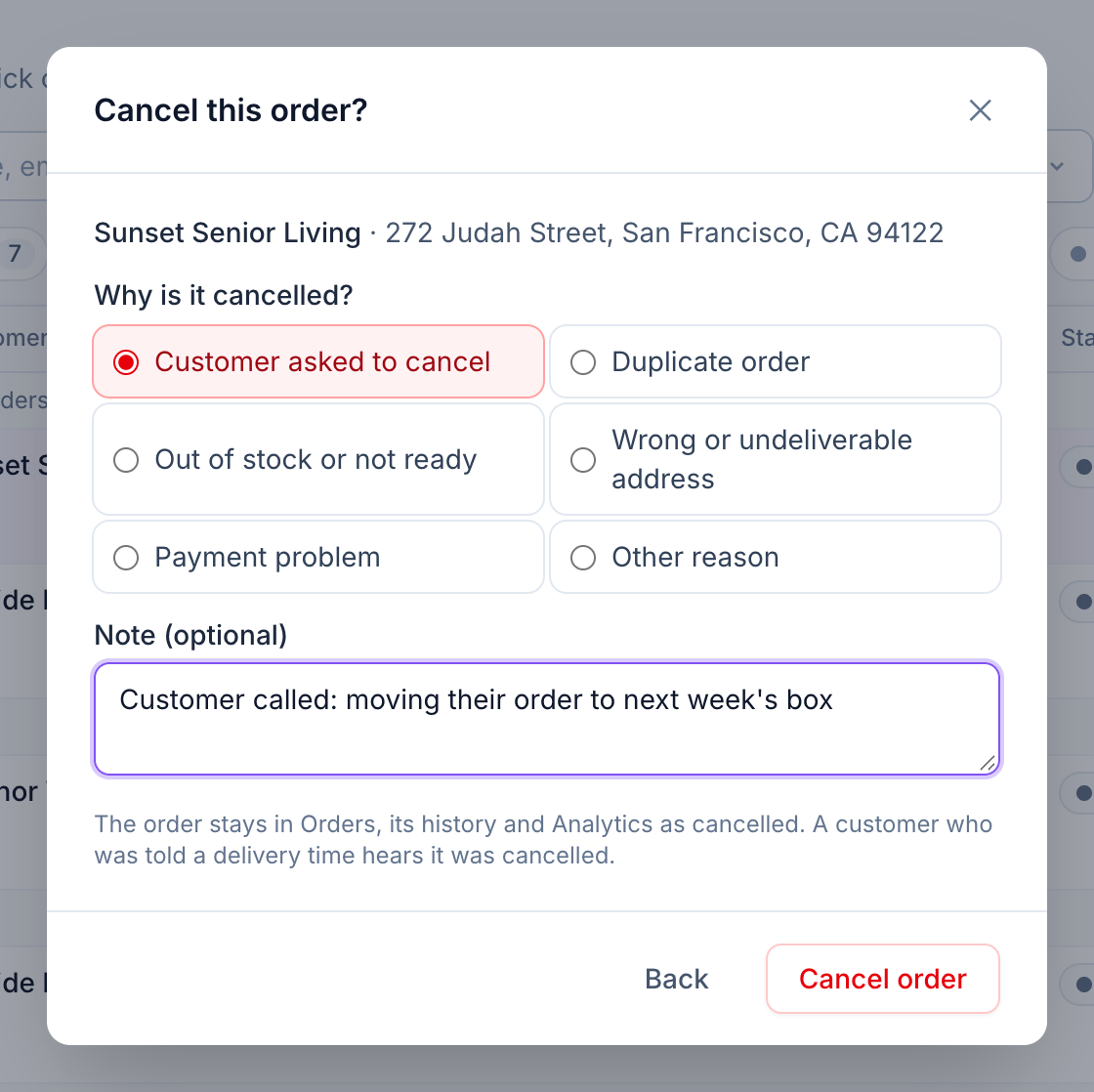
Tick the orders and click Cancel orders…, or open one stop and choose Cancel order… under More. Pick the reason, add a note if you like, and click Cancel order. It stays in Orders under Cancelled, in its history and in Analytics. A driver who has it sees it canceled, and brings the parcel back to the depot if it is already in the van.
Tip: Restore on the order opens it again, as long as no driver had it. Delete is only for orders entered by mistake.
Related feature
Know what needs you before your phone rings →